Users, roles & access
This page covers everything to do with who can use Ops AI in your tenant: the role model, the Users page, Entra-group-based role mapping, your own Profile, and Personal Access Tokens (PATs) for scripted API access.
The role model
Every user belongs to your MSP and has exactly one role. Three roles, mapped to access levels:
| Role | Access level |
|---|---|
| Admin | Full access. Manages users, integrations, SOPs, billing, notifications, CSP/GDAP, branding, and approves/rejects agent actions. Bulk replay and customer off-boarding are admin-only. |
| Tech | Creates and edits SOPs, manages routing rules, manages scheduled jobs, approves/rejects agent actions, configures own notification preferences. Cannot manage billing or users. |
| Viewer | Read-only access to dashboards, agent runs, SOPs, and reports. Cannot make changes or approve actions. |
Promotion and demotion is instantaneous — the next page navigation picks up the new role without a re-login.
The Users page
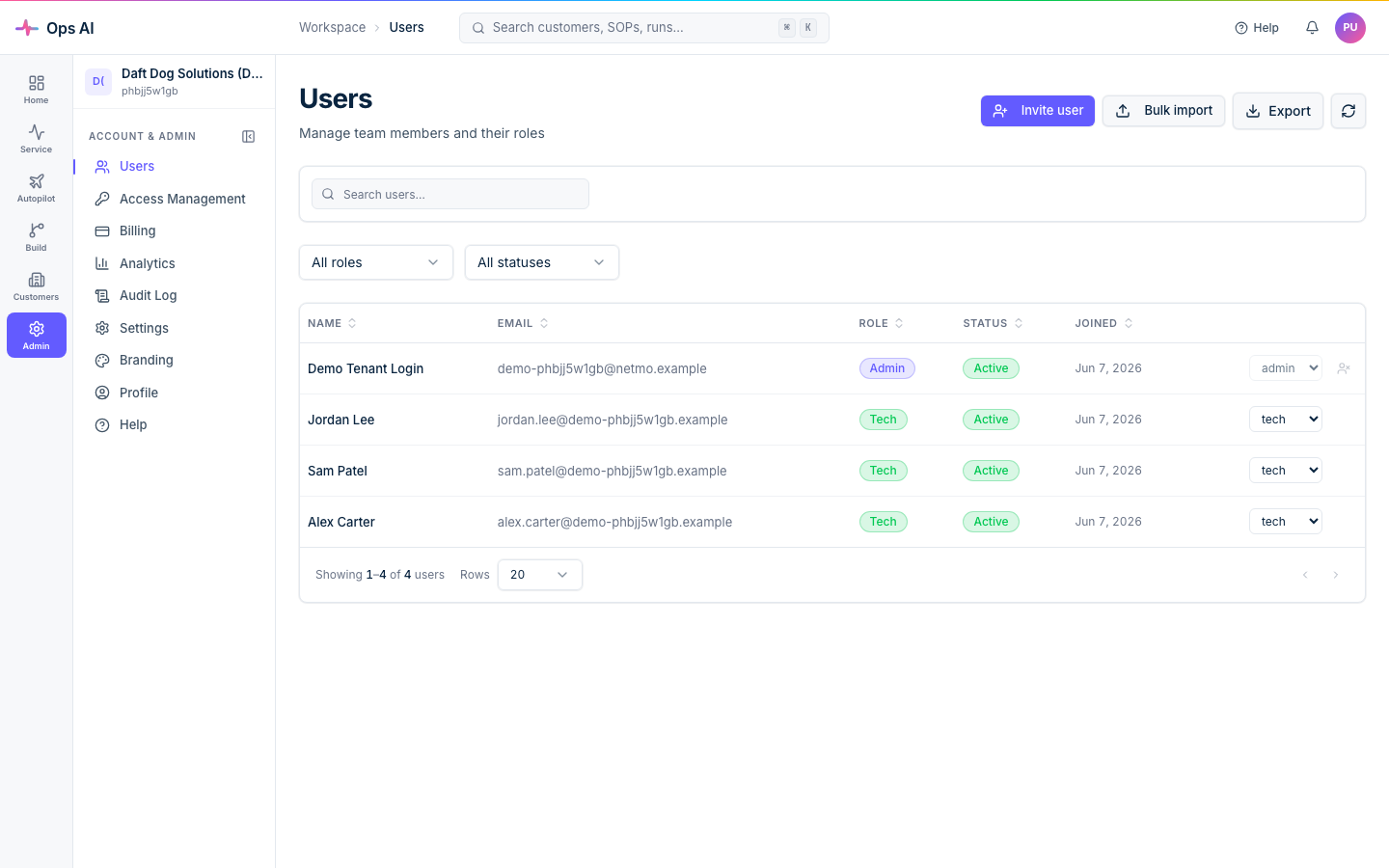
Open Users (/app/users) to see everyone in your MSP. The list shows display name, email, role, last sign-in, and active/inactive status.
Auto-provisioning
You don't manually invite users one-by-one. Anyone in your Entra tenant who navigates to your unique login URL, completes Entra SSO, and consents to Ops AI is auto-provisioned the first time they sign in — they land on the Dashboard with the Viewer role by default. Admins promote them from the Users page when ready.
This means the only sharing you do is your login URL + organisation slug. Treat the slug as an identifier, not a secret — Entra SSO is the authentication boundary.
Promoting and demoting
Find the user (use the search bar to filter by name or email), use the role dropdown next to their name to pick a new role, and the change applies immediately. Audit Log captures every role change — actor, target user, old role, new role, timestamp.
Deactivating
To remove a team member's access without losing their history:
- Find the user in the list.
- Click the deactivate toggle.
The user can no longer sign in, but their activity history (audit log entries, agent runs they triggered, approvals they granted) is preserved. Reactivate later if needed — the role and history are still there.
CSV export
The Export button at the top of the page produces a CSV of every user, role, status, and last-sign-in timestamp. Up to 10,000 rows per export.
Access Management — Entra-group-based roles
If your MSP already manages role membership through Entra security groups (e.g. an MSP-Admins group, an MSP-Techs group), you can wire those groups straight to Ops AI roles instead of clicking through the Users page after every joiner.
Open Access Management (/app/access-management) — admin only. The page shows two columns:
- Entra group — pick from the groups in your tenant.
- Ops AI role — choose Admin, Tech, or Viewer.
Save a mapping. From then on, when a user signs in, Ops AI reads their Entra group memberships from the ID token and applies the highest-privilege matching role. If a user is in MSP-Techs and MSP-Admins, they get Admin.
This is great for joiners/leavers — adding someone to MSP-Techs in Entra is enough; their next sign-in promotes them automatically.
For the Microsoft 365-specific walk-through (app roles, one-click defaults, custom group mappings, login resolution), see Access Management.
Precedence
If a user has both an explicit role on the Users page and matches a group mapping, the higher-privilege role wins. So you can't accidentally demote a user by adding them to a Viewer-mapped group.
Profile
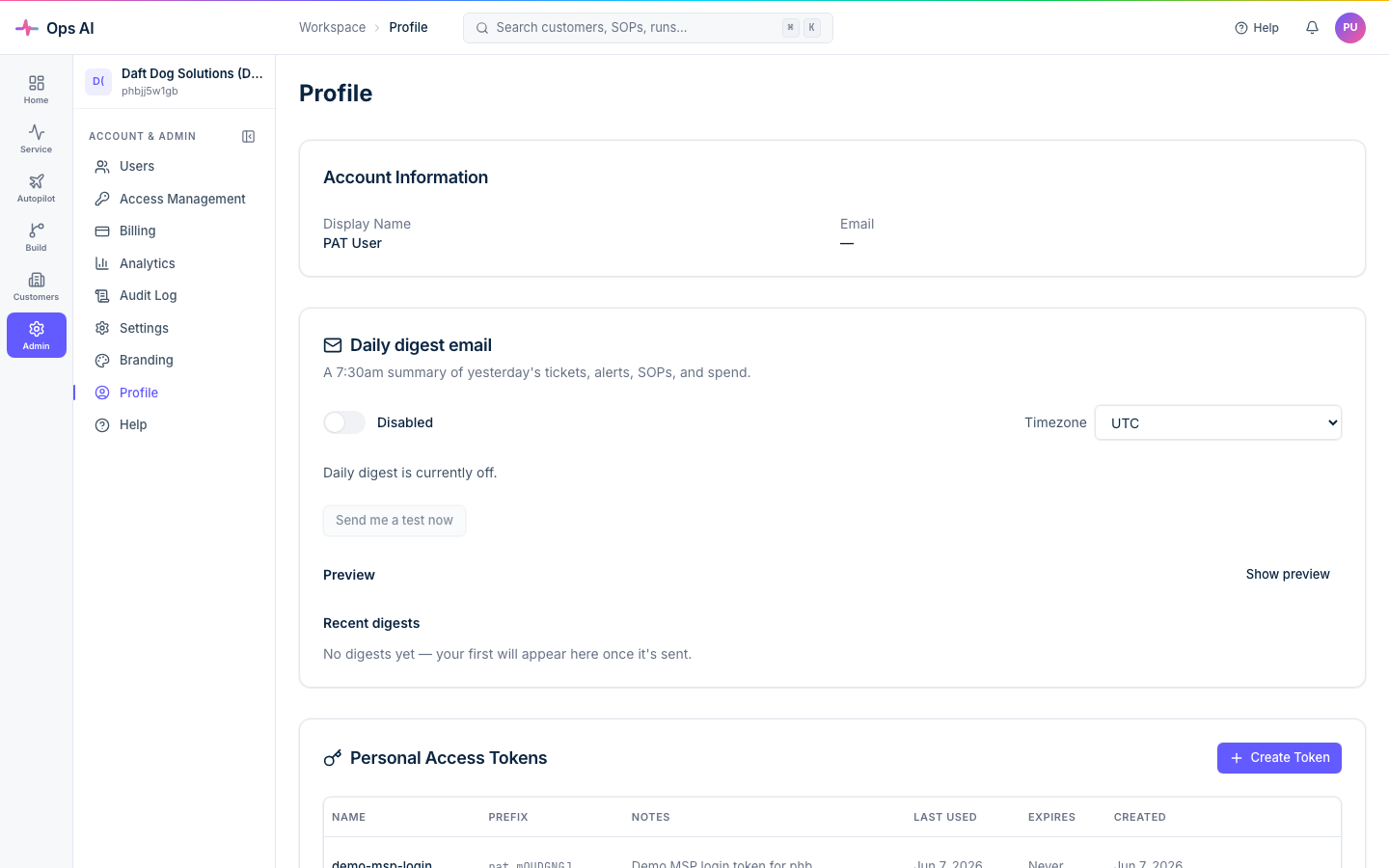
Open Profile (/app/profile) — every user can see their own Profile. The page shows:
- Email — your Entra sign-in address.
- Display name — your name as shown to teammates.
- Role — your current access level.
- MSP — the organisation you belong to.
The same page hosts your Personal Access Tokens (below) plus a per-user Daily digest email toggle for the 07:30 yesterday-summary email and a timezone selector.
Personal Access Tokens (PATs)
PATs let you call the Ops AI API from scripts, CI pipelines, monitoring tools, or any tool that can't go through the Entra browser-redirect SSO flow.
Creating a PAT
- On the Profile page, click Create token.
- Enter a name for the token (e.g. "CI pipeline" or "Monitoring script") so you know what it's for later.
- Choose an expiry period.
- Click Create.
- Copy the token immediately — it's shown only once. The token format looks like
pat_abc123def456.... If you lose it, you must create a new one.
Each user can have up to 20 active PATs. Tokens are PBKDF2-hashed at rest; only the hash is stored, the plaintext is shown to you only at creation time.
Using a PAT
Two ways to use a PAT:
Direct API access — include the token as a Bearer header on every request:
Authorization: Bearer pat_abc123def456...
Token login — exchange a PAT for a short-lived session JWT, useful for browser-based tools that prefer cookie/session auth:
POST /api/public/auth/token-login
Content-Type: application/json

{"token": "pat_abc123def456..."}
This returns an 8-hour session token.
Managing PATs
From the Profile page you can:
- View all your tokens (name, creation date, last used, expiry).
- Rename a token to refresh its description.
- Deactivate a token (it can be reactivated later).
- Delete a token permanently.
Security tips
- Treat PATs like passwords — don't share them or commit them to source control.
- Use descriptive names so you know what each token is for and can revoke confidently.
- Set short expiry periods for tokens used in temporary scripts.
- Rotate regularly and delete unused tokens.
- Each PAT inherits your role at the time the request is made — if your role is reduced, every PAT you own immediately operates at the lower role.
Where to look when something goes wrong
- A new joiner can't sign in — confirm they're in the right Entra group (if you use Access Management) and that they navigated to your tenant's login URL with the right slug.
- A user lost admin access unexpectedly — check Access Management for a group mapping that demoted them, and Audit Log for explicit role-change events.
- PAT returns 401 — token expired, deactivated, or the user it belongs to has been deactivated. Check the Profile page and Users list.
- Need to bulk-deactivate a leaver — deactivate the user in Entra (which blocks SSO) and deactivate them on the Users page (which kills any active session JWTs and marks them inactive in audit history).