Webhooks
Webhooks are how your vendor systems push real-time events into Ops AI — a new ticket in Autotask, an alert in Datto RMM, a security incident in EDR. This page covers registering webhooks, watching the event log, replaying failed events with the right safety guards, and reconciling local state against your vendor.
Where to manage webhooks
Two pages, two purposes:
- Webhook Management (
/app/webhooks/manage) — register and configure webhook endpoints. One row per registration. - Webhook Events (
/app/webhooks) — see every received event with status, payload, and replay controls.
Registering a webhook
Open Webhook Management and click Add registration:
-
Select the integration instance the webhook will receive events from (e.g. your Autotask integration).
-
A unique webhook URL is generated automatically based on your tenant's domain. It looks like:
https://app.msp-ops.ai/webhooks/{your-slug}/{instance-id}It may include an
/entity/{entity_type}segment depending on the integration. Always copy the exact URL shown rather than constructing it manually. -
A secret key is also auto-generated. You'll need both the URL and the secret when configuring the webhook on the vendor side.
-
Copy the URL + secret, then go to your vendor's admin panel (e.g. Autotask Admin → Extensions & Integrations → Webhooks) and create the matching registration over there.
Managing registrations
Each registration row exposes:
- Toggle active/inactive — temporarily disable a webhook without deleting it. Useful during maintenance windows.
- View secret — click to reveal the secret (hidden by default for security).
- Delete — permanently remove the registration. For Autotask, the corresponding webhook is also removed from Autotask. If Autotask rejects the delete, the local registration is preserved and you'll see an inline error — use Reconcile with Autotask to investigate (see below).
The Webhook Events log
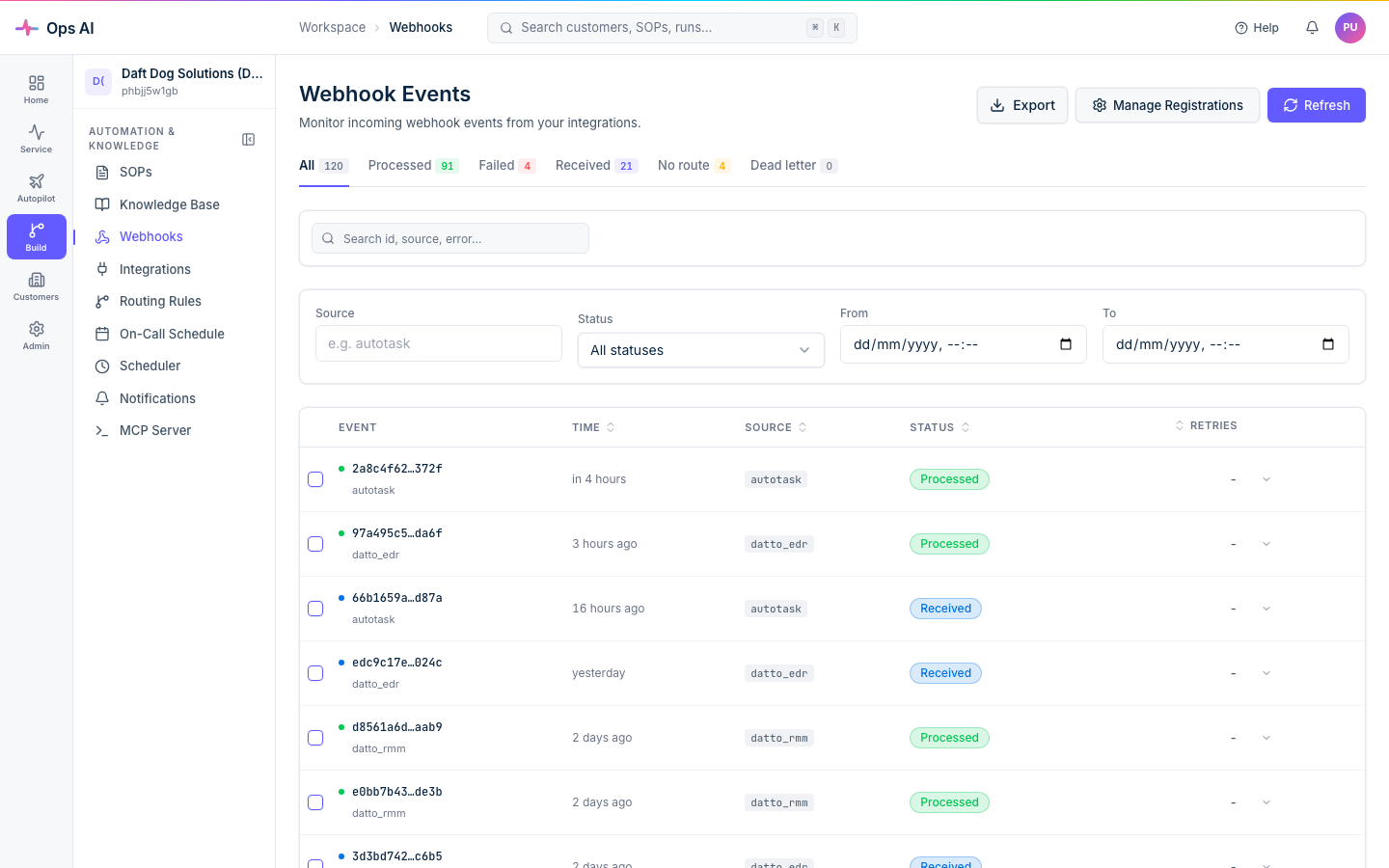
Open Webhook Events. The page lists every received event with:
- Source — which vendor sent it.
- Status — successful, failed, or dead-letter.
- Timestamp — when it arrived.
- Payload preview — click the row to expand and view the raw JSON payload.
Failed events automatically retry up to 3 times. Events still failing after retries land in the dead-letter queue, where Failure Analysis (below) tells you why.
Failure Analysis panel
When an event fails at any stage of the pipeline, expand its row to see a Failure Analysis panel:
- Pipeline stage — colour-coded badge:
validation,sop_matching,agent_dispatch,agent_execution,tool_call. Tells you exactly where processing stopped. - Error type and message — a short classifier (e.g.
no_sop_matched,tool_execution_error) plus the underlying vendor error or exception text. - Suggested fix — a remediation hint highlighted in blue (e.g. "Create an SOP with keyword 'disk_full' for source 'autotask'" or "Check the integration credentials for vendor 'autotask'").
- Metadata — stage-specific detail (vendor, tool name, agent run id, closest-matched SOP, keywords extracted) in a collapsible JSON viewer.
Apply the suggested fix, then Replay the event (below) to push it through the pipeline again.
Retry vs Replay
These are two different things:
- Retry — the existing event record runs through the pipeline again. Capped at 3 attempts; reuses the same event ID. Triggered automatically; you can also click Retry on a failed row.
- Replay — a brand-new event is created, linked back to the original via a "Replayed from" breadcrumb. Useful when you've fixed a root cause (created a missing SOP, rotated a broken credential) and want to push previously-failed events through again.
Replay requires the Admin or Tech role.
Replay guards
To prevent double-mutation of vendor data (double-created tickets, double-isolated devices, double-sent notifications), replays are subject to four guards. The error body always includes a code field:
| Error code | HTTP | Meaning | What to do |
|---|---|---|---|
replay_in_flight | 409 | A replay of this source event is already received or processing. | Wait for the in-flight replay to finish; the response includes conflicting_replay_id so you can jump straight to it. |
replay_cooldown | 429 | You replayed the same source event in the last 5 minutes. | Wait — retry_after_seconds and the Retry-After header reflect the actual remaining cooldown (e.g. ~290s if you replayed 10 seconds ago). last_replay_id links to the previous replay. |
replay_confirmation_required | 422 | The original event already succeeded. Replaying will re-run agents, re-create tickets, re-send notifications. | If you're sure (e.g. reproducing a bug), pass force=true (single replay) or set "force": true in the bulk-replay body. |
replay_rate_limit | 429 | You exceeded the per-MSP replay rate limit (10 replays/minute across both endpoints combined). | Wait — retry_after_seconds reflects the remaining window. |
The cooldown guard fires even on back-to-back successes — treat it as a signal that you probably don't need to click Replay again.
Bulk replay
Admins can replay up to 50 events in one request:
- On Webhook Events, tick the checkbox next to each event you want to replay.
- The bulk-actions bar appears at the top of the list with the selection count.
- Click Replay selected and confirm.
- Each event is evaluated independently. The response summarises how many were replayed, how many were skipped (with
reason:in_flight,cooldown, oralready_succeeded), and how many failed to clone (unknown IDs or cross-tenant events).
Setting force=true on a bulk replay bypasses the already_succeeded guard but does not bypass in_flight or cooldown — those are enforced per event. The replay_rate_limit guard applies once to the whole bulk request (a 50-event bulk counts as one replay against the per-minute budget).
Bulk replay requires Admin role. Non-admin users don't see the selection checkboxes or the bulk-actions bar.
Deduplication
Events are automatically deduplicated within a 60-second window. If the same vendor event ID arrives twice within 60 seconds (vendor retry, double-firing webhook), the second one is dropped silently. This is invisible during normal operation; you'll only see it in the audit log if you go looking.
Reconcile with Autotask (admin only)
Autotask is the one integration where Ops AI creates and deletes webhooks directly via the vendor API. This keeps both sides in sync automatically, but drift can still happen if:
- A webhook was created or deleted manually in Autotask's webhooks page.
- An older registration left an orphan on one side.
Click Reconcile with Autotask on Webhook Management. Run Reconcile fetches both sides; the report shows three buckets:
- Matched — local and Autotask agree. No action.
- Remote orphans — webhooks in Autotask the app doesn't know about. Each is flagged either ours (matches our
Ops AI — {entity} ({slug})naming pattern) or foreign (created manually or by another integration). - Local orphans — registrations in the app whose Autotask side no longer exists.
Click Clean up drift to delete all local orphans + all ours remote orphans. Foreign webhooks are never touched — if someone on your team manually created a webhook in Autotask outside Ops AI, reconcile reports it but leaves it alone.
After cleanup, re-create any registrations you actually need via Add registration — the atomic create flow keeps both sides in sync going forward.
Where to look when something goes wrong
- No events arriving — the integration may be healthy but the webhook on the vendor side isn't pointed at our URL. Re-check on the vendor admin panel.
- Events arriving but failing — open the event row; Failure Analysis tells you which pipeline stage broke and suggests a fix.
- Same event replayed and now blocked — read the
codefield in the error; the guard table above tells you which one tripped. - Drift between local and Autotask — run reconcile.
Once webhooks are firing, the next stop is Routing rules (so events match the right agent) and SOPs (so the agent knows what to do).