SOPs (Standard Operating Procedures)
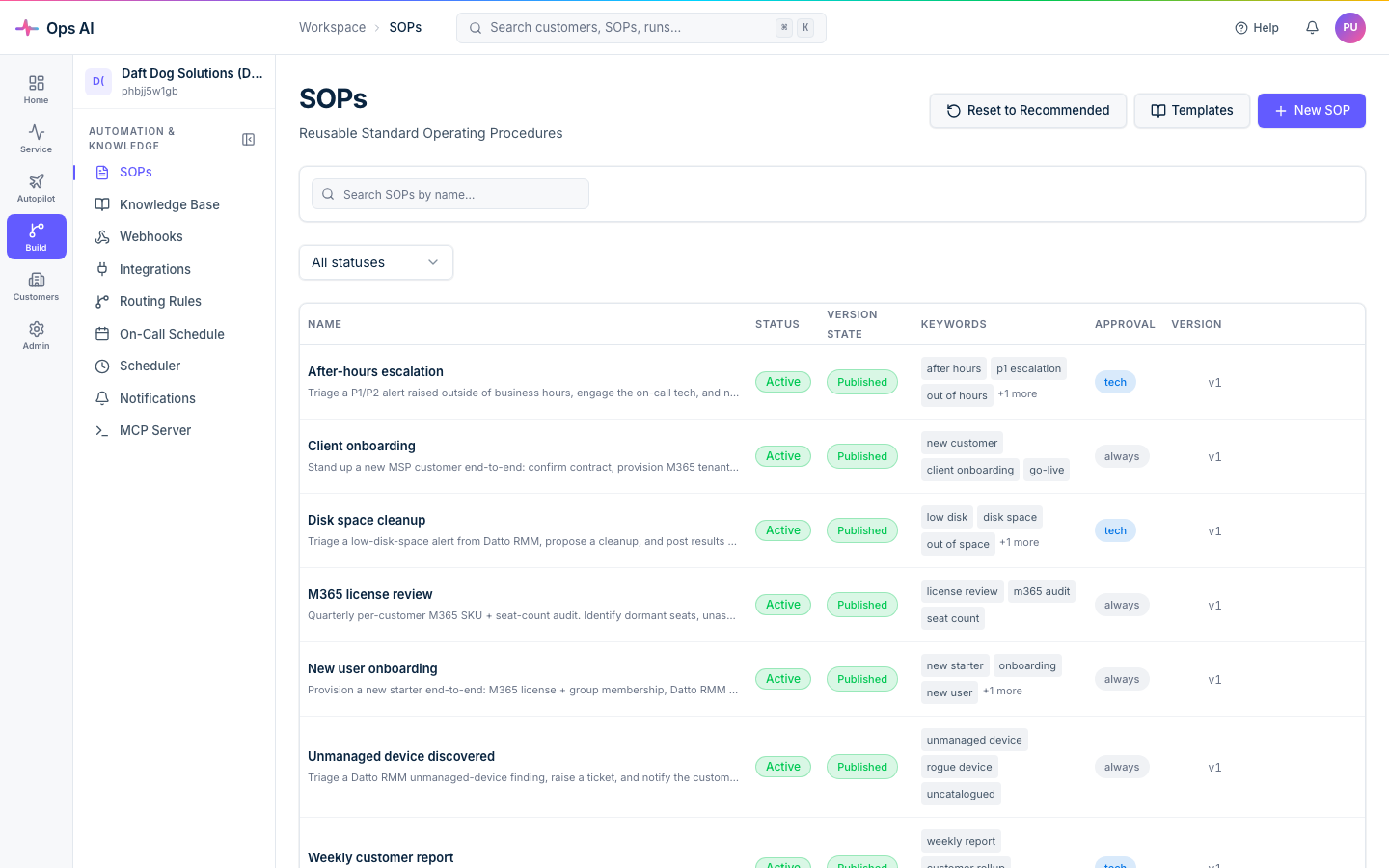
An SOP is a written procedure your techs follow when a particular situation comes up — "password reset request," "VPN down at site X," "M365 license shortage." Ops AI takes that procedure and runs it for you: matching the trigger event, walking the steps, calling vendor APIs, pausing for approval when the next step is destructive, and finally posting the result back to your PSA ticket.
How matching works
Each SOP carries:
- Trigger keywords — free-text strings matched against incoming ticket / alert payloads (e.g.
"new starter","onboarding","new employee"). - Matching conditions — structured field-value pairs (e.g.
priority = high,queue = "Service Desk").
When a webhook arrives, the routing engine evaluates rules at Routing rules (/app/routing-rules); the rule that fires dispatches the event to the matching SOP.
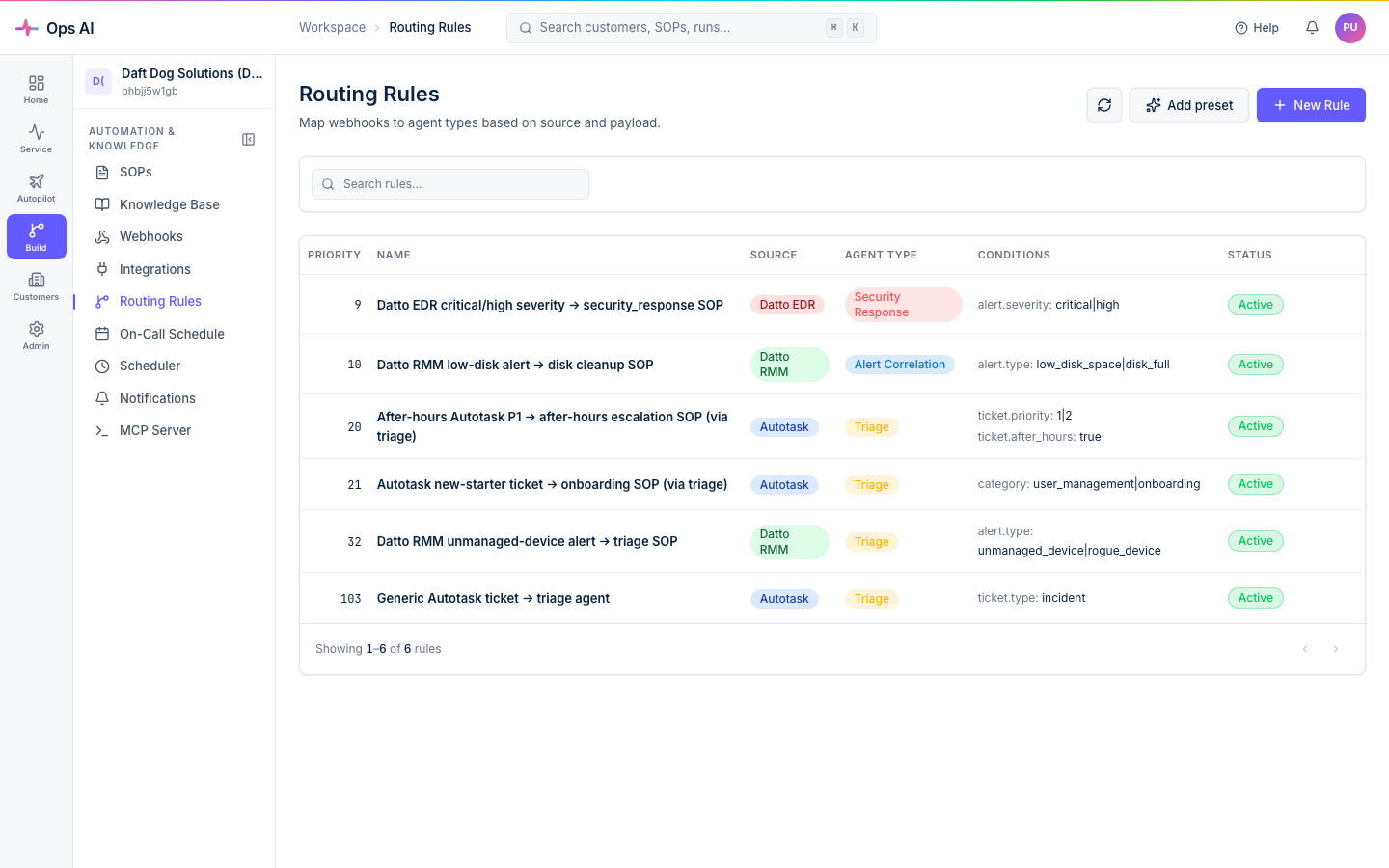
You can target an SOP at a specific customer (only fires for that customer's tickets) or leave it MSP-wide (fires for any customer's matching event).
Authoring SOPs
Open SOPs (/app/sops) and click New SOP, or clone an Ops AI-curated template from the Templates tab. The editor has two modes:
- Step Editor — a flat list of ordered steps with instruction text, required tools, and a per-step approval override. The fastest way to write a linear procedure.
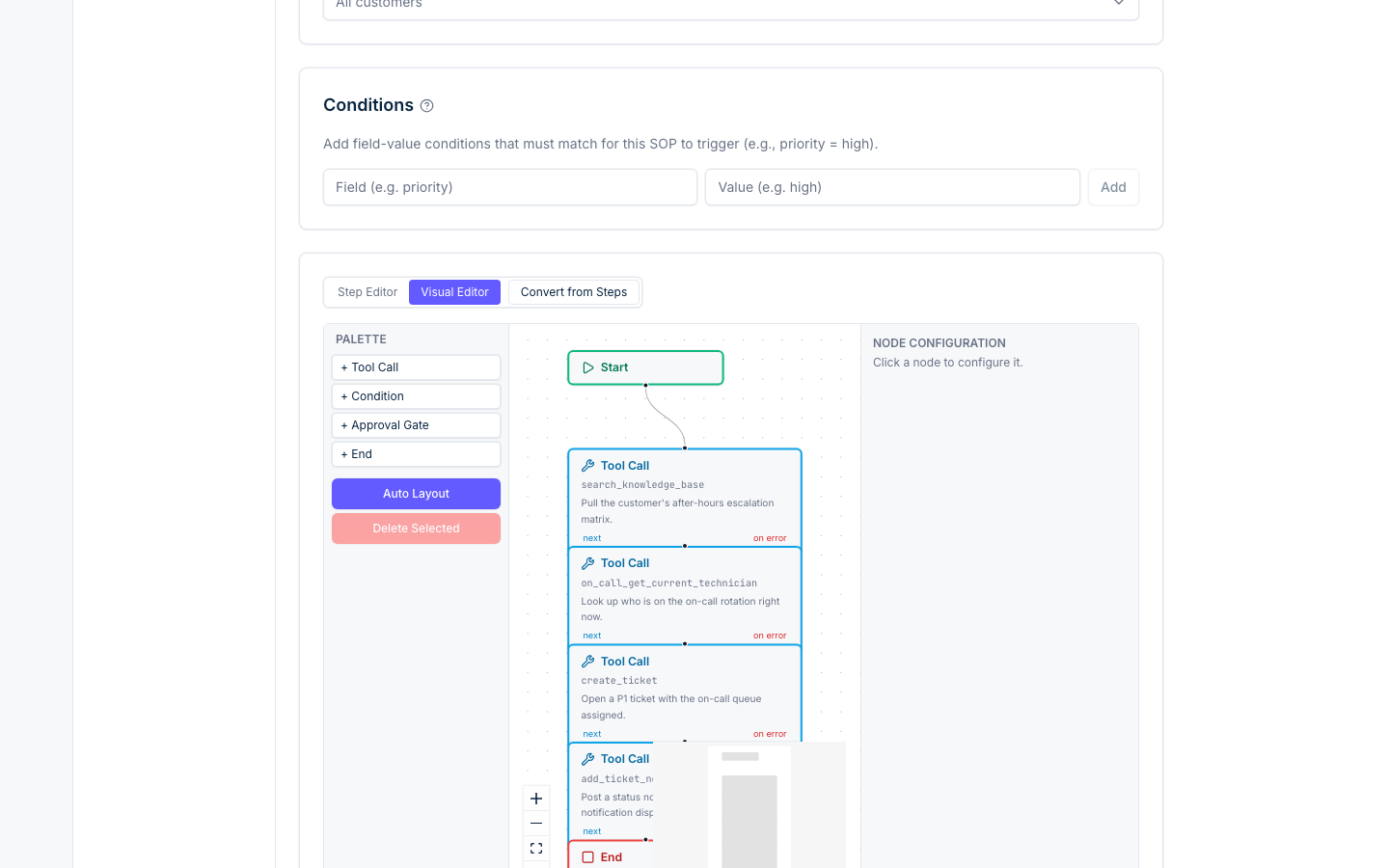
- Visual Editor — a drag-and-drop DAG canvas with branching. Switch to this when you need "if X, do Y, otherwise Z."
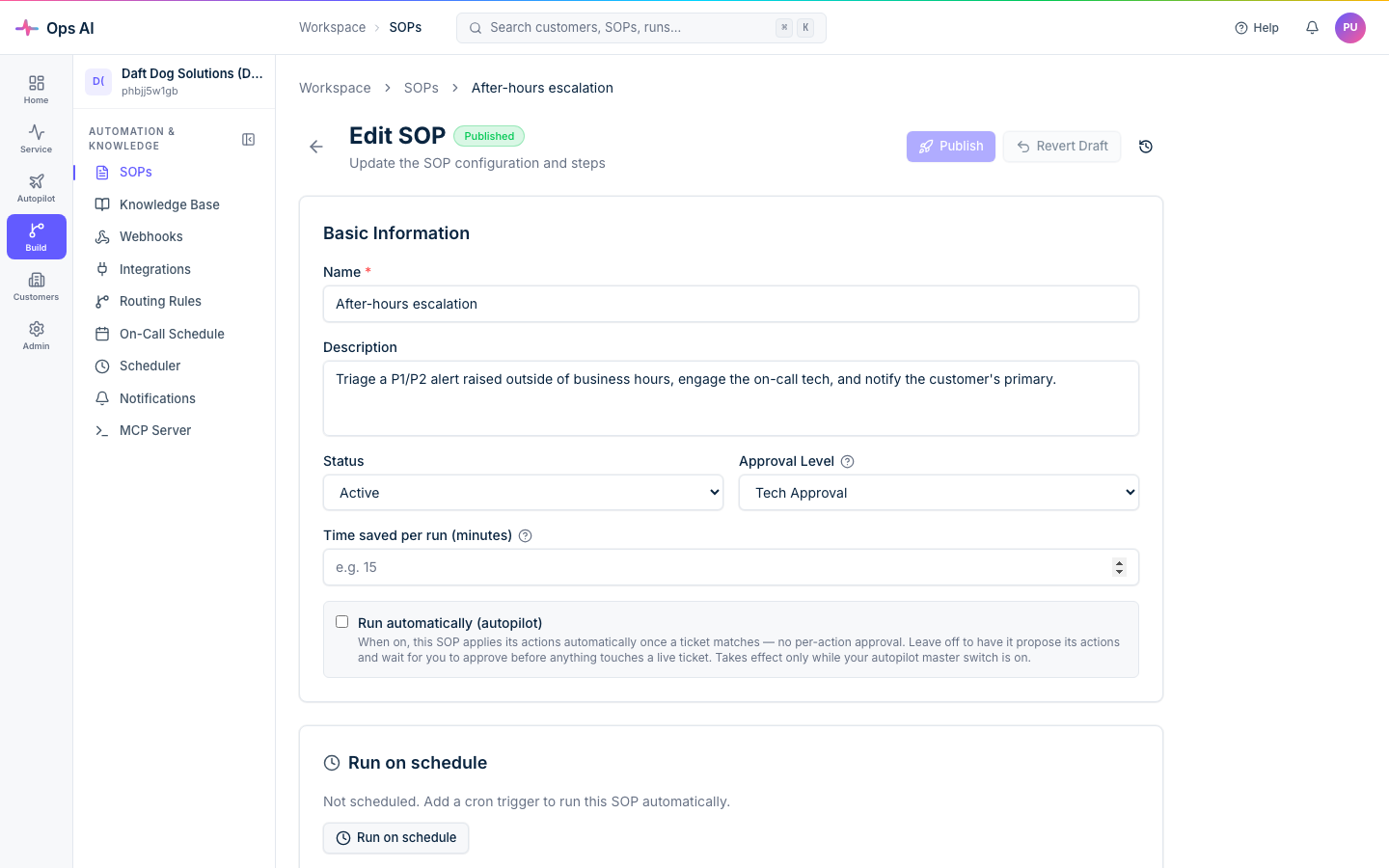
The header of every editor surface shows the SOP's basic info: name, description, status (Active / Draft / Disabled), approval level, trigger keywords, category, integration, and customer filter.
Step Editor
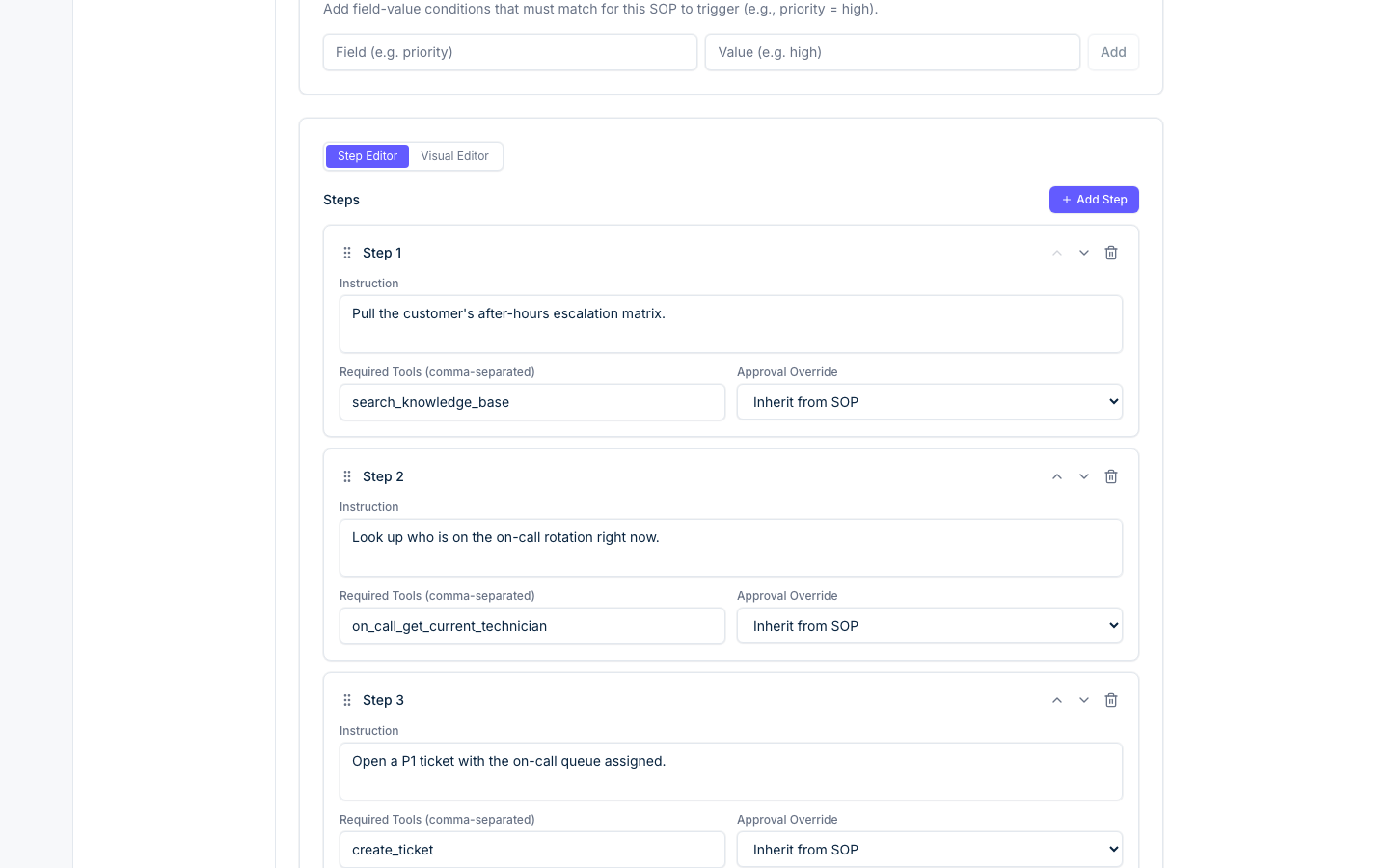
The Step Editor gives you a linear list of steps. Each step has an instruction (the natural-language directive the agent follows), one or more required tools (the vendor calls it can make), and an optional approval override.
Approval levels
The SOP-level approval level sets the default; individual steps can have an approval override that changes the behaviour for that specific step.
- Full Auto — the agent executes all steps without pausing.
- Approve Before Execute — the agent pauses before executing and waits for human approval.
- Draft Only — the agent drafts what it would do but takes no action. Useful for review-only workflows.
Visual editor (DAG mode)
For SOPs that need branching logic (e.g. "if malware detected, isolate device; else, add note and close"), the Visual Editor gives you a drag-and-drop canvas with five node types:
- Start (green) — auto-created single entry point.
- Tool Call (blue) — executes a specific tool. Parameters support template substitution:
{{trigger.ticket_id}}or{{result.count}}pull values from the trigger event or the previous tool's output. - Condition (amber diamond) — branches based on a simple expression. Supported operators:
==,!=,<,<=,>,>=,in,not in. Drag from the green handle for the yes branch, red for the no branch. - Approval Gate (orange) — pauses execution and creates an approval request. Configure the required role.
- End (red) — terminal node. You can have multiple End nodes for different branches.
Versioning
Every time you save changes to an SOP, the version number automatically increments and the previous version is preserved. This gives you a full history of changes.
Running an SOP
Three entry points:
- Automatic — webhook event matches and dispatches.
- Manual from a ticket — open an agent run, click Run SOP against this ticket.
- Test run — from the SOP editor, supply a sample payload and watch a dry-run execute without calling write APIs.
Active runs surface on Live monitoring (/app/live-monitoring); completed runs land in SOP Reports (/app/sop-reports) with full transcript, tool calls, costs, and a shareable public link if you want to send the outcome to a customer.
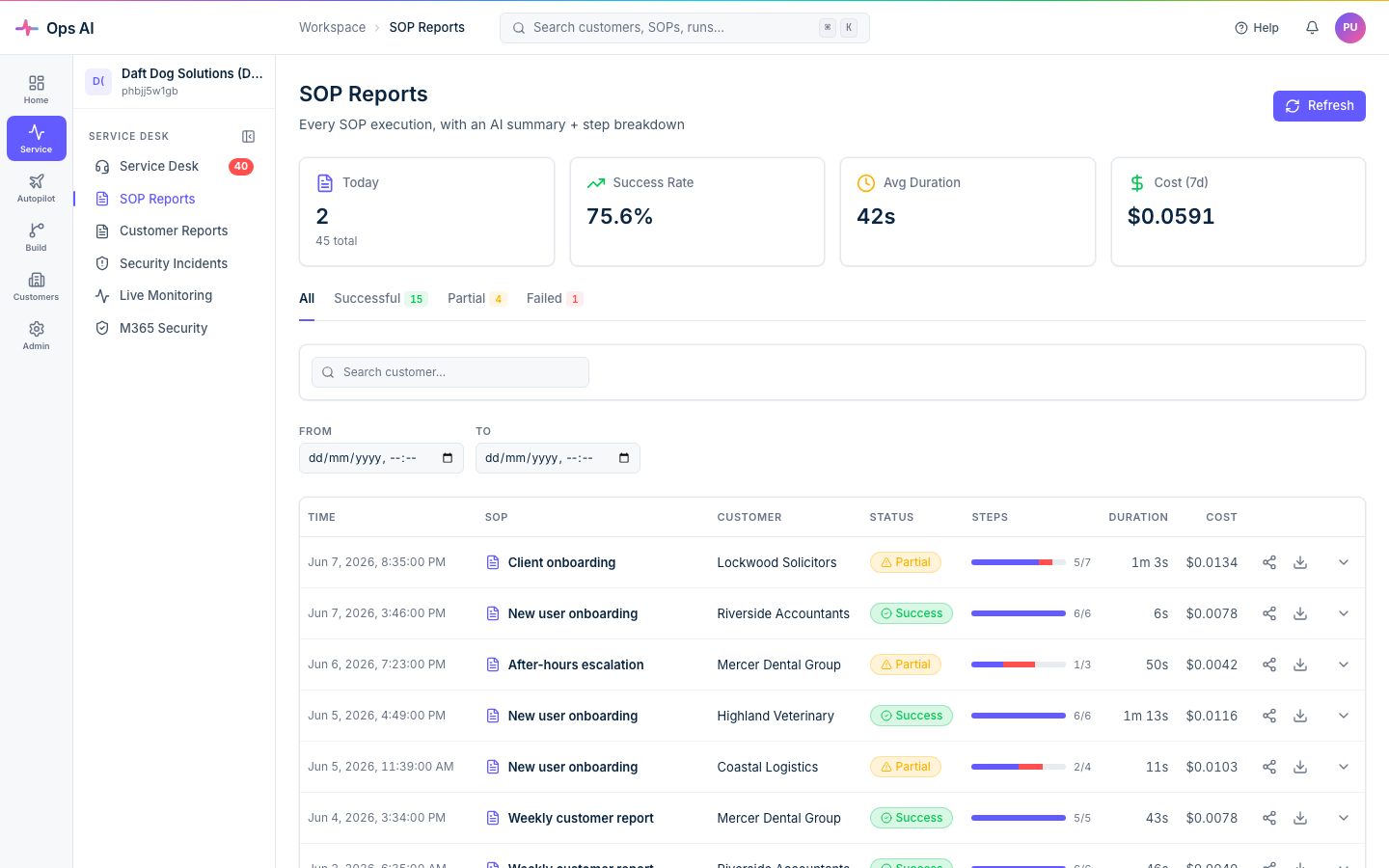
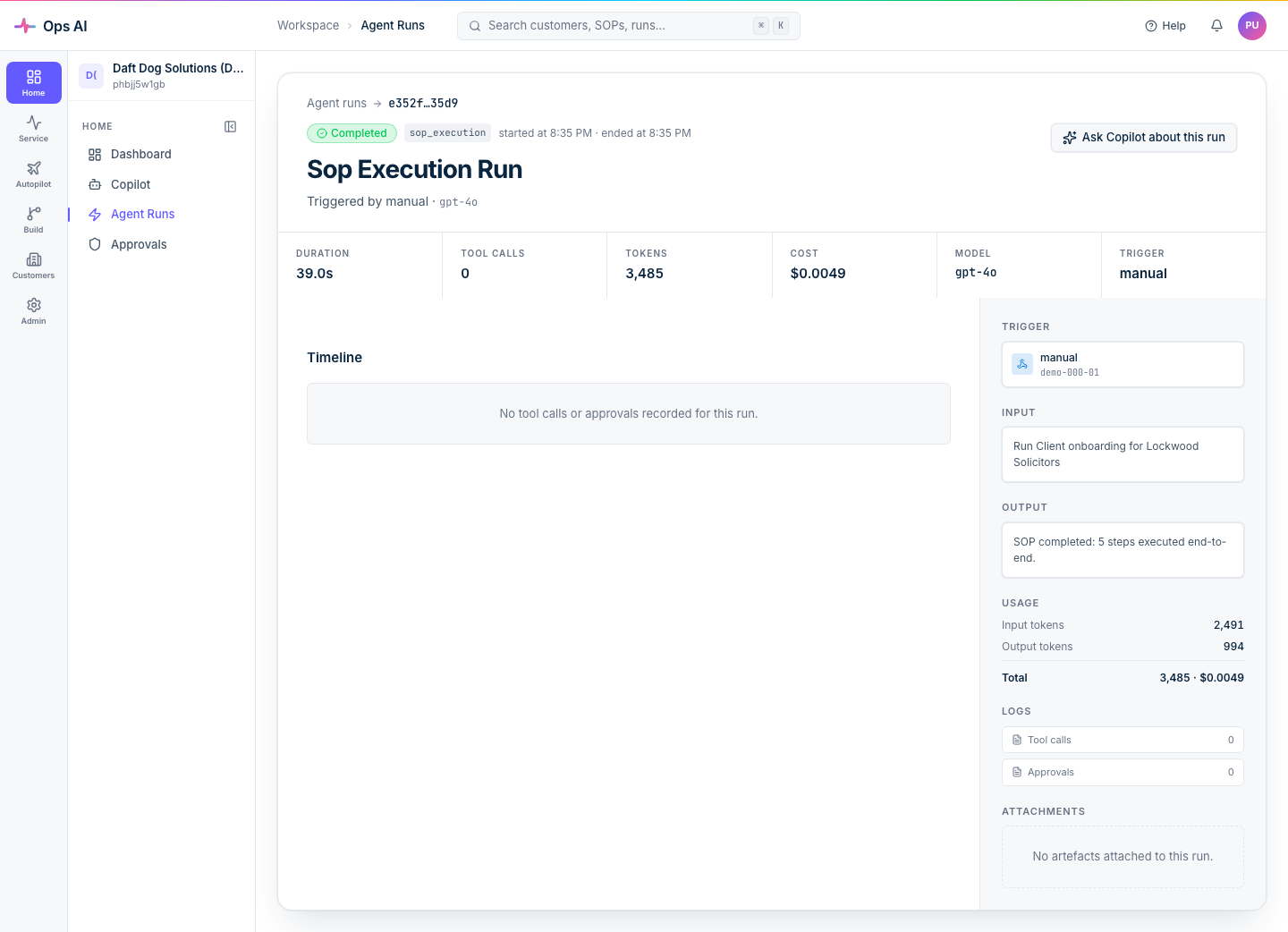
Click any run for the full agent transcript: trigger context, every tool call, token usage, cost, and any approval gates that paused execution.
Dry run
Before enabling an SOP for production traffic, you can safely preview what it would do with the Dry Run feature:
- All read operations run against live vendor APIs so the agent sees realistic data.
- All write operations return simulated responses — no real change is made.
- Approval gates are logged but do not pause — the timeline shows what would have happened.
- An execution report is generated with
status = simulatedso it's clearly marked.
Dry runs are useful when creating aggressive automation SOPs (auto-isolate compromised devices, auto-escalate tickets) — you can validate the logic and tool-call order without any production risk.
Approval gates
When an SOP step is marked "needs approval," the run pauses and a request shows up on Approvals (/app/approvals). The card surfaces the customer, the SOP, the exact tools about to be called, and the proposed action — review it, approve or reject, and the run resumes (or aborts) from there.
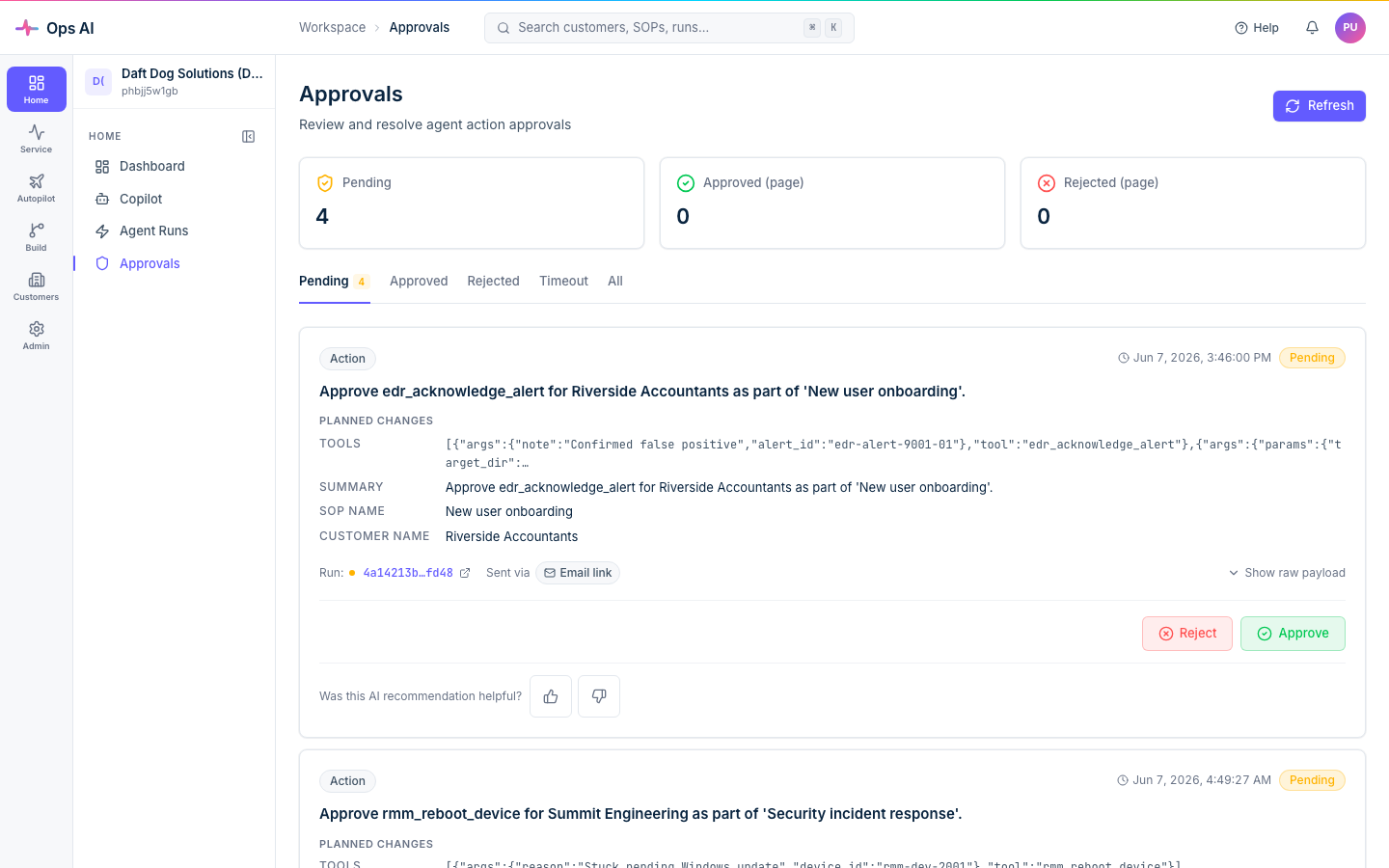
Only users with the Admin or Tech role can approve or reject actions.
Knowledge-base context
If you've populated Knowledge base (/app/knowledge-base) with vendor-specific docs or customer-specific quirks, SOP agents pull relevant context into their working set automatically — your "this customer's VPN gateway lives at 10.0.0.1" notes become part of the agent's reasoning input. See Knowledge base.