Onboarding
When your organisation signs up for Ops AI, Ops AI creates your MSP account and sends an invite email to your designated super admin. The email contains a one-time invite link that starts the onboarding wizard.
Wizard steps
You do not register an Entra app or paste a client ID and secret — Ops AI is a Microsoft-verified multi-tenant application, so onboarding is a one-time admin consent granted by a Global Administrator. The wizard has three steps:
-
Review invite. Open the invite link. The wizard validates the token and shows the MSP name and the super-admin email it was issued to, so you can confirm you're setting up the right organisation.
-
Grant consent. A Global Administrator clicks Connect with Microsoft and is redirected to Microsoft's admin-consent screen, which lists exactly the permissions Ops AI requests and why. These are read-only directory scopes — Ops AI reads your directory to sign your team in and map them to roles; it does not request any write scope on your own tenant:
User.Read— sign you in and read your basic profile.User.Read.All— list your team so we can map them to roles.Group.Read.All— list your security groups for role-mapping.Directory.Read.All— verify tenant membership on every sign-in, so there are no shared passwords.
When the admin approves, Microsoft redirects back to Ops AI and we bind your account to the tenant Microsoft asserts — we never accept a caller-supplied tenant ID.
-
Done. The wizard confirms your account is ready and shows your unique login URL and an opaque organisation code (a short slug like
x7k9m2). Share the code with your team so they can log in.
Customer (M365/CSP) tenants are different. The consent above connects your MSP tenant for sign-in. Onboarding your customers' Microsoft 365 tenants for management uses the separate CSP/GDAP partner path — see Connect your Partner tenant. Ops AI never requests write access to your own tenant through the sign-in app.
First login
After onboarding, visit your login URL and enter your organisation code. You will be redirected to your Microsoft Entra sign-in page.
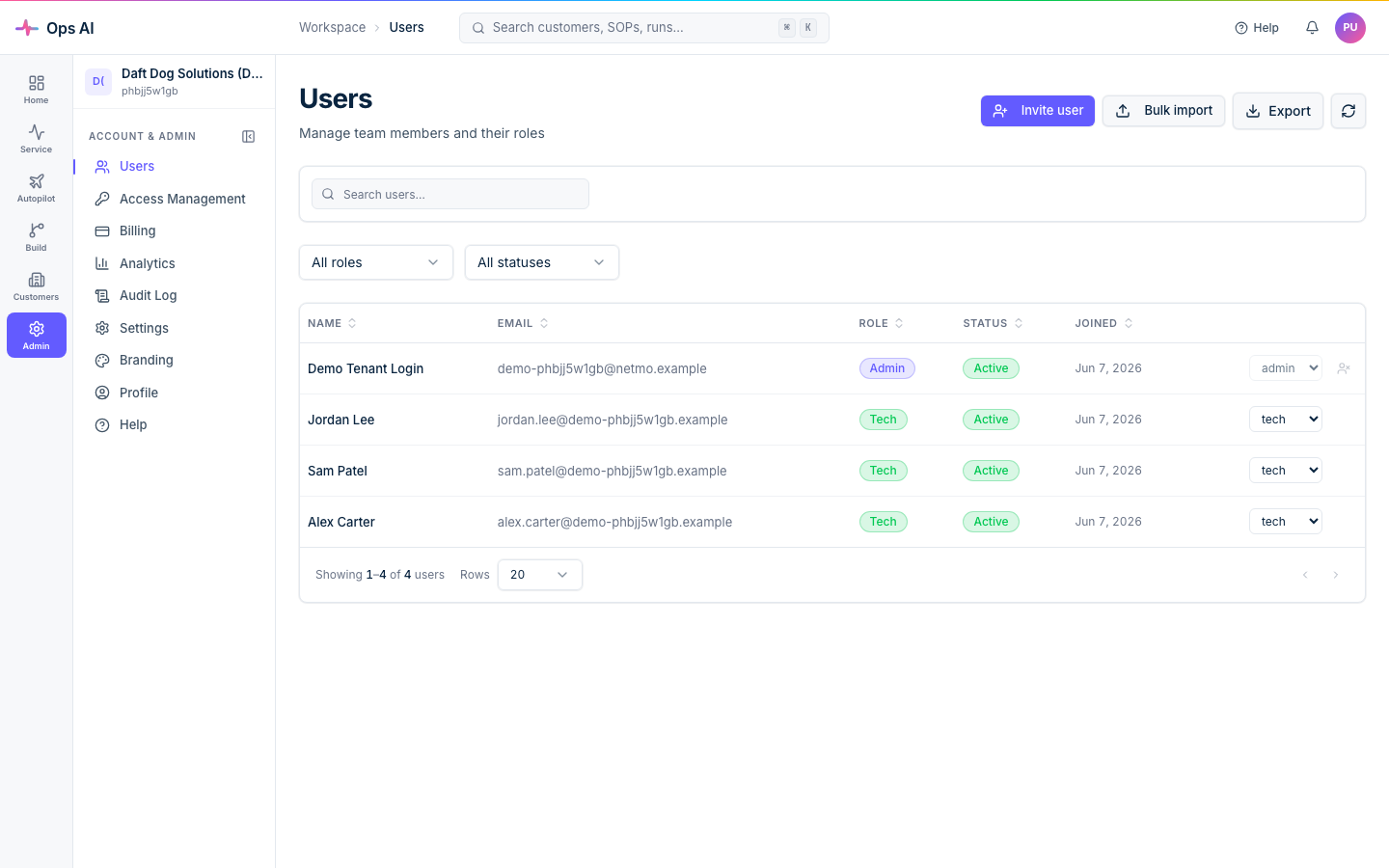
The first user to log in is automatically assigned the Admin role. All subsequent users are provisioned as Viewers — an Admin can promote them later from the Users page.
First-run checklist
Your dashboard displays a First-Run Checklist to guide you through initial configuration:
- Configure a PSA integration
- Set up PSA webhooks
- Create your first SOP
- Configure notification channels
- Invite team members
Each item links to the relevant page. The checklist disappears once all items are complete.
Roles
| Role | Access level |
|---|---|
| Admin | Full access. Manages users, integrations, SOPs, billing, notifications, CSP/GDAP, and approves/rejects agent actions. |
| Tech | Creates and edits SOPs, manages routing rules and scheduled jobs, approves/rejects agent actions, sets own notifications. |
| Viewer | Read-only access to dashboards, agent runs, SOPs, and reports. Cannot make changes or approve actions. |
Admins can promote or demote any user from the Users page. Deactivating a user preserves their activity history in the audit log.