Routing rules
Routing rules sit between Webhooks and SOPs: they decide which agent type handles an incoming event. Without routing rules, webhooks are received and logged but no agent is dispatched — so this is a setup-once page that's easy to forget exists, but skipping it means nothing actually happens when events arrive.
Open Routing Rules (/app/routing-rules) to manage your rules.
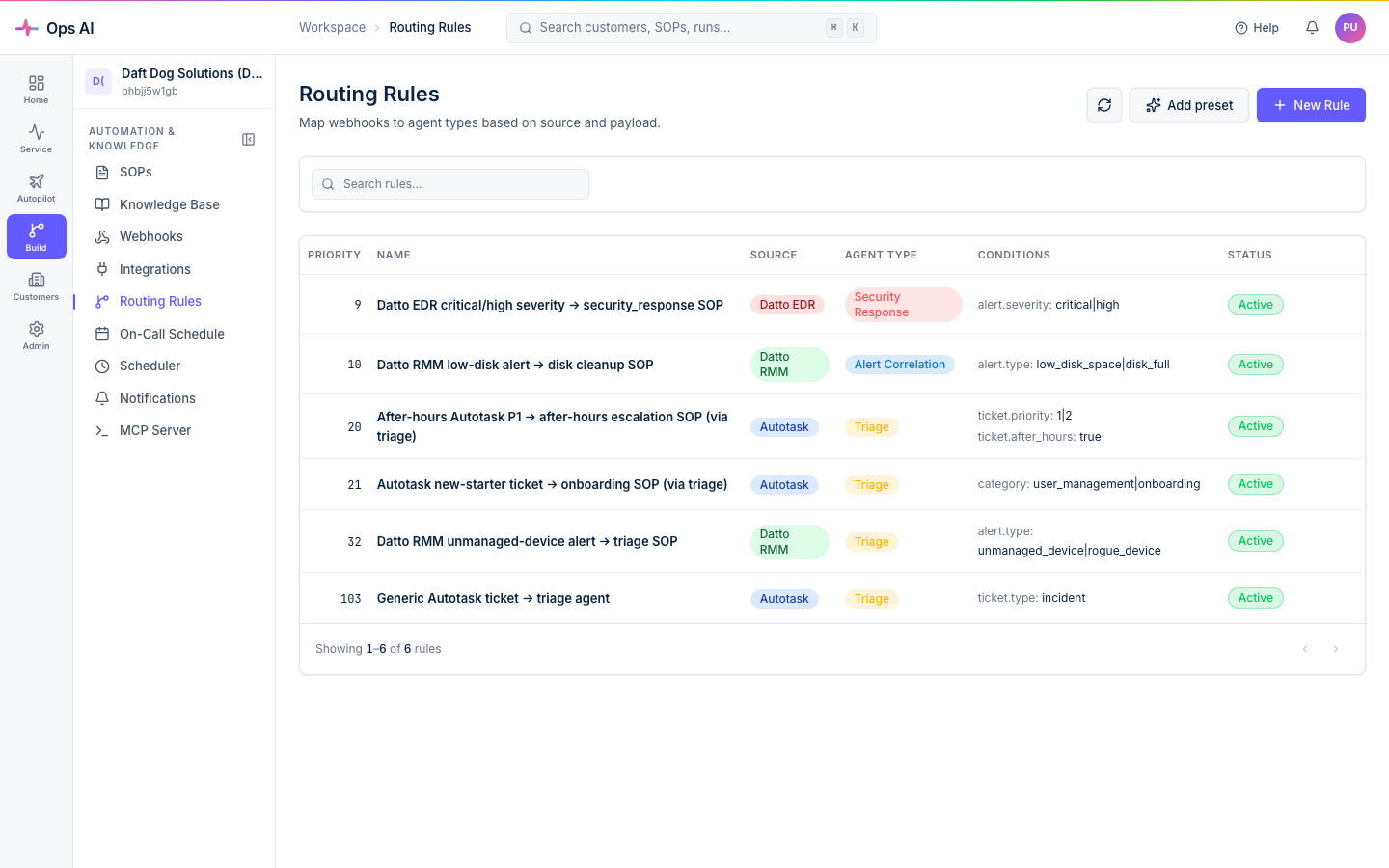
What routing rules do
When a webhook arrives, the dispatcher checks your routing rules in priority order. The first rule that matches the event's source and conditions triggers the specified agent type. If no rule matches, the event is logged and ignored — visible in Webhook Events with no_route_matched.
A rule has four parts:
- Name — a descriptive label for you (e.g. "Route Autotask tickets to Triage").
- Source — the vendor that sends the webhook (
autotask,datto_rmm,datto_edr,it_glue,pax8,unifi).*matches any source. - Agent type — which agent handles matching events. The selectable routing targets are Triage, Alert Correlation, and Security Response. (SOP Execution and Reporting are not routing targets — see the table below.)
- Priority — a number controlling evaluation order. Lower numbers are checked first. First match wins.
- Conditions (optional) — a JSON object with additional matching criteria.
Creating a rule
Click Create rule to open the editor:
- Give the rule a name.
- Pick a source from the dropdown (or
*for any). - Pick the agent type that should handle matching events.
- Set a priority. Reserve
1-9for the rare highest-precedence rules; use10-50for normal rules and100+for catch-alls. - Optionally add conditions as a JSON object (see below).
- Save.
The rule applies to future webhook events immediately. Already-processed events aren't re-evaluated.
Agent types — who does what
| Agent type | What it does |
|---|---|
| Triage | (routing target) Classifies new tickets, matches them to SOPs, sets priority and status, adds notes. If a matching SOP is found, automatically chains to the SOP Execution agent. |
| Alert Correlation | (routing target) Analyses RMM alerts by correlating them with device info, existing tickets, and configuration documentation. |
| Security Response | (routing target) Responds to security threats from EDR: isolates affected devices, creates incident tickets, sends notifications. |
| SOP Execution | Not a routing target. Walks the steps of a matched SOP, calling vendor tools and pausing at approval gates. It's reached automatically when a Triage rule matches a SOP — a routing rule can't target it directly because it carries no SOP to run. |
| Reporting | Not a routing target. Generates operational reports using read-only access. Triggered on a schedule via Scheduler or run on-demand — not by webhook routing. |
For a typical MSP, Triage is the default for PSA tickets and Alert Correlation is the default for RMM alerts.
Conditions JSON
The optional conditions field is a JSON object whose key/value pairs must all match the incoming event payload for the rule to fire. Examples:
{"entity_type": "ticket"}
Only matches events whose payload includes entity_type: "ticket".
{"entity_type": "ticket", "priority": "high"}
Only matches high-priority tickets — both keys must match.
{"queue_name": "Service Desk"}
Only matches events from the specific queue.
The matching is strict equality, evaluated against the top-level fields of the event payload after the integration has normalised it. (Some vendors flatten nested objects; check a recent event in Webhook Events to see the exact field names.)
Priority ordering
Rules are evaluated lowest priority number first. If two rules could both match an event, only the lower-priority-number rule fires. This means:
- Use low numbers for specific rules (e.g. "high-priority Autotask tickets → Security Response" at priority 10).
- Use high numbers for catch-alls (e.g. "any Autotask ticket → Triage" at priority 100).
- Most MSPs end up with 5-15 rules total. If you're past 50, consider whether some can be replaced with SOP-level matching conditions instead.
Editing and deleting
- Click any rule in the list to open it for editing. Changes apply immediately to future events.
- Delete removes the rule. Already-dispatched events that were matched by this rule are unaffected (they reference an immutable snapshot of the rule at dispatch time).
Example setup — typical small MSP
| Priority | Name | Source | Agent type | Conditions |
|---|---|---|---|---|
| 5 | EDR critical → Security Response | datto_edr | security_response | {"severity": "critical"} |
| 10 | Autotask high-priority → Security Response | autotask | security_response | {"entity_type": "ticket", "priority": "high"} |
| 20 | RMM alerts → Alert Correlation | datto_rmm | alert_correlation | (none) |
| 30 | Autotask tickets → Triage | autotask | triage | {"entity_type": "ticket"} |
| 100 | Catch-all → Triage | * | triage | (none) |
The catch-all at priority 100 means any unrecognised event still gets dispatched (to Triage) rather than being silently dropped — useful while you're building out coverage.
Where to look when something goes wrong
- Events arrive but no agent fires — open Webhook Events; look for
no_route_matched. Add a rule that matches. - Wrong agent fires — re-check priority ordering. The first match wins, so a high-precedence specific rule might be eclipsed by a low-priority catch-all if you got the numbers backwards.
- Conditions don't match — open the event in Webhook Events, expand the payload, and copy the exact field name. Vendor field names sometimes change between API versions.
- Want to test a rule before it goes live — easiest path is to disable it, or use Dry Run on the matched SOP to validate the downstream behaviour without acting on real events.
The dispatch chain in full: Webhook arrives → Routing rule matches → Agent type dispatches → SOP matched (if Triage) → SOP Execution agent runs → Approvals pause where needed → Result posted back to PSA. If something isn't happening, walk that chain in order.