Approvals
Approvals are Ops AI's human-in-the-loop gate. Whenever an agent reaches a step that requires human oversight — based on the SOP's approval level, an individual step's override, or a Copilot-driven write operation — it pauses execution and creates a pending approval. A human reviews, approves or rejects, and the run resumes (or aborts) from there.
Open Approvals (/app/approvals) to see pending requests. The Operations sidebar item shows a small badge with the pending count when items are waiting.
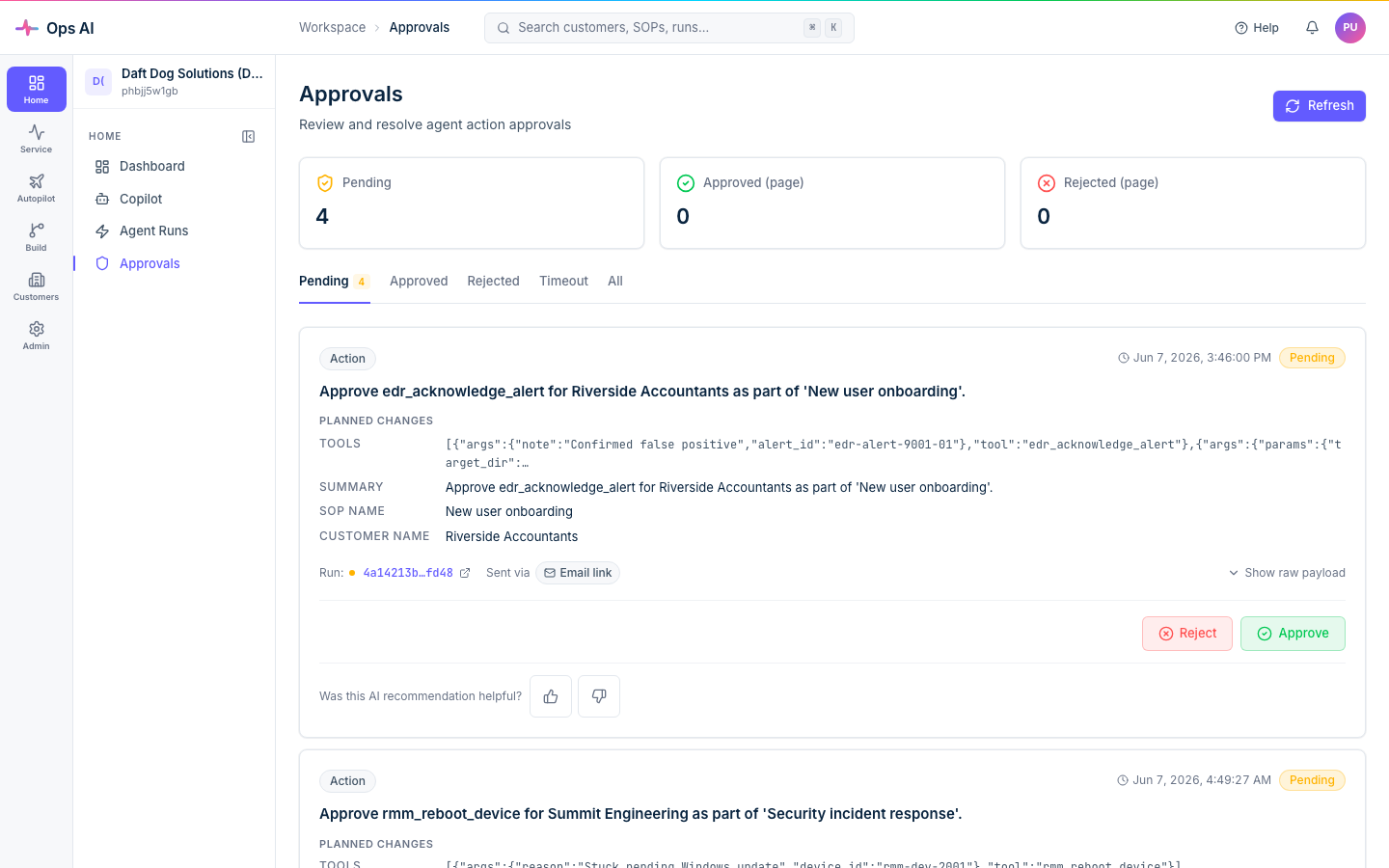
What triggers an approval
Three sources put an approval on the queue:
- An SOP step requires approval. Either because the SOP's overall Approval Level is set to Approve Before Execute (so every meaningful step pauses), or because an individual step has an
approval_overrideoftech_required/admin_required/dual_required. - A Copilot write operation. When you ask Copilot to do something destructive ("disable jane.doe in Acme's M365 tenant"), the same approval flow gates the underlying tool call.
- An agent flags a write for review. Even when a step doesn't have an explicit override, the Security Response and SOP Execution agents will surface a write for human review if the per-MSP AI Config auto-approval threshold isn't met.
What an approval card shows
Each pending approval card shows the full context you need to make a decision:
- Customer — which customer org the action is for.
- SOP / Copilot context — which SOP this came from (or "Copilot ad-hoc" if it's from a chat).
- Tool to be called — the exact vendor tool name (e.g.
microsoft_graph_disable_user,datto_edr_isolate_endpoint). - Parameters — the values the agent intends to pass, formatted for human reading. Parameter names match the vendor's API schema.
- Plain-English preview — a short description of what the action will do (e.g. "Disable user jane.doe@acme.example.com in Acme Corp's M365 tenant").
- Agent transcript snippet — what the agent has done so far in the run, for context on why it's about to take this action.
- Approve + Reject buttons.
Approving or rejecting
Click Approve — the agent resumes and executes the action. The result lands in SOP Reports (or the Copilot conversation transcript) along with the rest of the run.
Click Reject — the agent stops at this step. The run is marked rejected; no action is taken; the agent transcript records who rejected and (optionally) why.
You can add an optional comment before approving or rejecting — this lands in the audit log and the agent transcript, useful for "Approved with note: confirmed with customer over the phone."
Decisions are immediate. Once you click, the agent picks up within a second or two — there's no separate "publish" step.
Who can approve
Only users with the Admin or Tech role can approve or reject. Viewers can see the queue but not act.
For SOP steps with dual_required approval, two distinct users must independently approve before the action proceeds — useful for high-risk operations like wiping a device or terminating a GDAP relationship. The first approver clicks Approve; the card stays in the queue with one tick; a second approver completes it.
Notification flow
When an approval is created, Ops AI sends a notification to the relevant users via their configured channels (Microsoft Teams, email, or both). The notification:
- Names the customer + SOP + tool + parameters.
- Includes a deep link straight to the approval card.
- Includes an at-a-glance approve/reject preview where the channel supports it (Teams adaptive cards have inline buttons).
Per-user notification preferences are configured on Notifications. The default for new users is Teams + email for the Approval Needed event type.
History and filtering
The Approvals page filters by status:
- Pending — awaiting decision (the default view).
- Approved — completed approvals; useful for reviewing past decisions.
- Rejected — rejected requests; useful for noticing patterns ("we keep rejecting this kind of thing — should the SOP be redesigned?").
Each row shows the approver, decision time, comment, and a link back to the agent run.
Auto-approval
Per-MSP AI Config has an auto-approval threshold (a slider from 0.0 to 1.0). When set, tool calls whose confidence score meets or exceeds the threshold skip the approval gate entirely. This is great for mature SOPs where the agent's confidence is reliable — you keep approval for ambiguous cases but fast-path the obvious ones.
A threshold of 0.85 is a sensible starting point for MSPs with mature automation. See Copilot AI for the full AI Config detail.
The auto-approval threshold is per-MSP, not per-SOP. If you want per-SOP control, leave auto-approval disabled and set the SOP's approval level explicitly.
Approval gates in the Visual Editor
The Visual Editor has an Approval Gate node (orange) that drops a pause-for-human-approval into a graph-backed SOP. Configure the required role on the node — tech_required for normal SOPs, admin_required for elevated risk, dual_required for two-person sign-off. See SOPs for the full Visual Editor walk-through.
Where to look when something goes wrong
- Approval not appearing in queue — confirm the SOP is set to Approve Before Execute (or the step has an override). A Full Auto SOP doesn't pause regardless of step config unless the step has an explicit
approval_override. - No notification sent — check your per-user notification preferences on Notifications; the Approval Needed event type may be set to None.
- Approval timed out / agent abandoned — pending approvals don't expire by default. If a run was abandoned, look for it in Agent Runs — the abandonment was probably an upstream timeout.
- Approved but action didn't happen — open the agent run; the timeline will show whether the tool call ran and what it returned. Sometimes the vendor API returns a soft-failure that's distinct from approval status.
Approvals are the safety net — most actions hit them at first, and as you build trust in your SOPs you progressively raise the auto-approval threshold or set steps to Full Auto. There's no rush; the gate is much cheaper than a wrong write.