Per-vendor integration setup
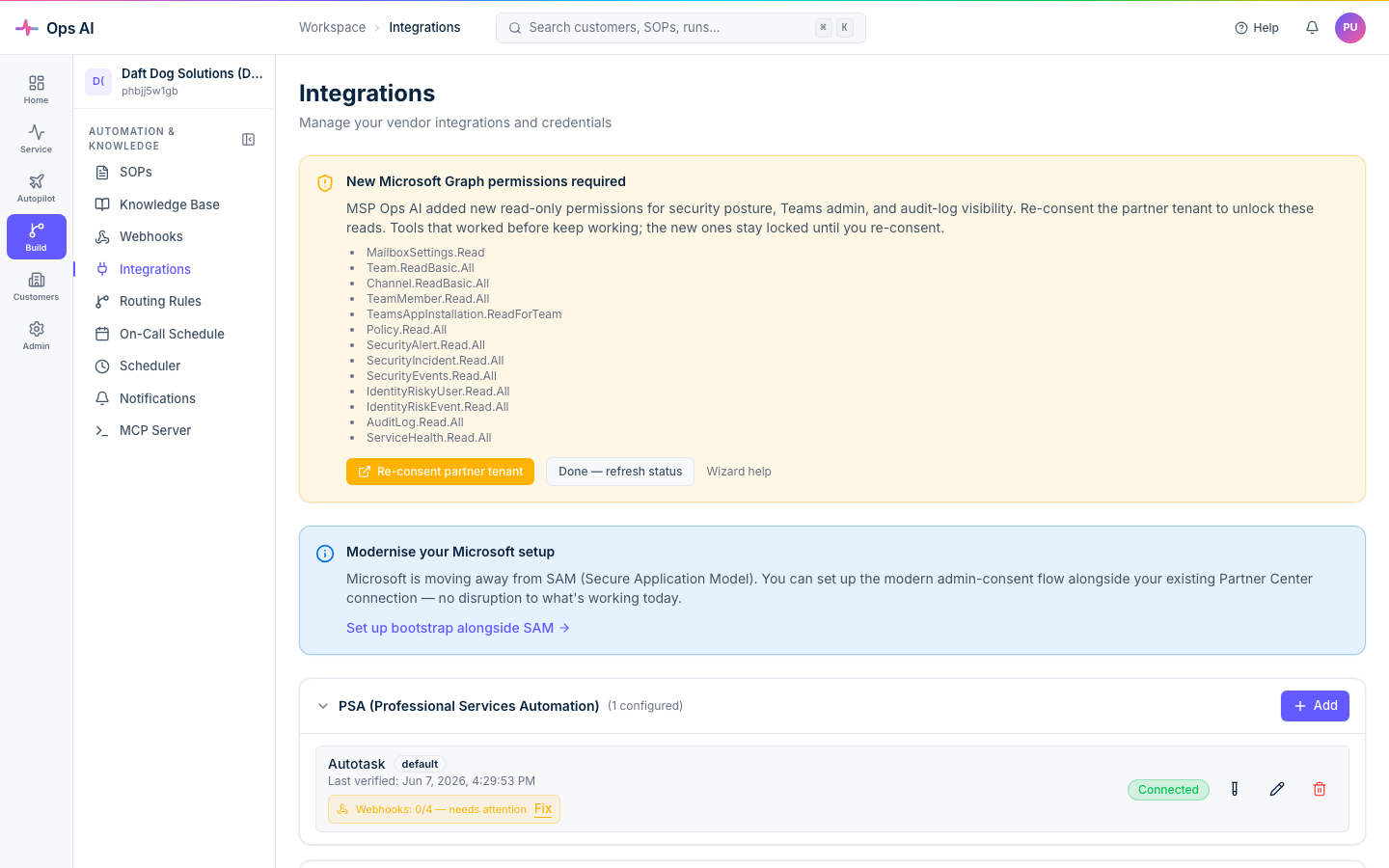
This page is the credential lookup table — what each vendor needs, where to find it in the vendor's portal, and what gets unlocked once the connection is healthy. For the cross-vendor workflow (Test connection, encryption, Integration Status, troubleshooting), see Integrations overview. For Microsoft 365 specifically, see Connect your Partner tenant.
Autotask (PSA)
Type: PSA. Plan tier required: any.
Credentials needed
- Username (API user) — the API username from the dedicated API user you create in Autotask.
- Integration code — provided by Datto/Autotask when you register Ops AI as an external integration.
- Secret — the password generated alongside the API user.
- Zone URL (optional) — auto-detected on first connection.
How to get them
- In Autotask, Admin → Resources/Users → New and select API User as the resource type.
- Set the security level to API User (System) (or a more restricted role if your security policy requires).
- Generate the username + password. Copy both.
- Open Admin → Extensions & Integrations → Integration Vendors and ensure the integration vendor for Ops AI exists; copy the integration code.
What gets unlocked
- Read tickets, companies, resources, contracts.
- Write ticket updates, time entries, notes.
- Webhooks (creates/deletes managed via the Webhooks page — see Webhooks for reconcile).
Datto RMM
Type: RMM. Plan tier required: any.
Credentials needed
- API endpoint — your Datto RMM region's API URL (e.g.
https://pinotage-api.centrastage.netfor the EU pinotage zone). - API key — generated in the Datto RMM admin panel.
- API secret key — generated alongside the API key.
How to get them
- In Datto RMM, sign in as an admin and open Setup → Users.
- Pick (or create) an API user, then under Account Information click Generate API Keys.
- Copy the key + secret immediately — the secret is shown only once.
- The endpoint is the host shown in your browser's address bar when you're signed into the Datto RMM portal — substitute
-apiinto the subdomain (e.g.pinotage→pinotage-api).
What gets unlocked
- Read device inventory, alerts, monitor state.
- Trigger jobs on devices.
Common pitfall
Datto API keys silently expire. If your integration starts returning 401s "out of nowhere," it's almost always the key's expiry — re-issue and re-paste.
Datto EDR
Type: Security (endpoint detection & response). Plan tier required: any. The Security Incidents sidebar item only appears when this integration is configured.
Credentials needed
- Endpoint URL — your EDR region's API URL.
- API key — from the Datto EDR admin panel.
- Site mapping (optional) — link Datto EDR sites to Ops AI customers via Customer Mapping.
How to get them
- In the Datto EDR admin portal, Settings → Integrations → API Keys.
- Generate an API key with read + quarantine scope.
- Copy the key.
What gets unlocked
- Read incidents, alerts.
- Quarantine endpoints (always with Approval).
- Powers the Security Incidents page.
IT Glue
Type: Documentation. Plan tier required: any. Read and gated write — see What gets unlocked below, and How Ops AI governs AI actions for exactly how writes are controlled.
Credentials needed
- API key — from your IT Glue user account.
- API base URL —
https://api.itglue.com(US) orhttps://api.eu.itglue.com(EU). This matters — see below.
How to get them
- In IT Glue, My Account → API Keys (top-right user menu).
- Click Generate API key, name it "Ops AI", and copy the value.
EU vs US accounts
IT Glue hosts accounts on two separate regional servers:
- If your IT Glue account is on the EU server, you must enter
https://api.eu.itglue.comas the API base URL. - If you leave the URL blank, the system defaults to the US endpoint.
If you enter the wrong URL, Test connection auto-detects the EU endpoint when it sees the regional redirect and advises you to update the URL — but you'll save a step by setting it correctly upfront. US accounts don't need to set a URL.
What gets unlocked
Read: documentation, configurations, contacts, flexible assets, SSL certificates, and password records. Customer-specific runbook content is surfaced into agent context (see Knowledge base).
Write (all gated — off by default, human-approved): Ops AI can write to IT Glue, and we'd rather tell you exactly what that means than pretend it can't. The tool registry exposes 16 IT Glue write tools — create / update / archive documents, configurations, contacts, flexible assets, SSL certificates, and related items — including four that touch the password vault: create a password, update a password, archive a password, and read a password in plaintext (a plaintext read is treated as a write for gating purposes, so it goes through the same controls).
None of these run on their own. Every one is subject to the full write-safety stack:
- The integration must be connected and enabled — no connection, no writes.
- Draft-then-apply on the most sensitive tools — the password-vault tools and archive operations can only be drafted by the AI; applying them is a separate, explicit step. (The document, configuration, contact, and flexible-asset writes aren't held behind this extra step — but on a propose-only customer they still can't apply without human approval; see the next point.)
- Per-customer autonomy mode — new customers default to propose-only, which routes every write to the Approvals queue for a human to approve or reject before anything changes. A customer only writes autonomously if you explicitly switch it to full-auto.
- Agent-type restriction + approval gates — the same per-MSP approval thresholds that gate every other vendor write apply here too.
If you want IT Glue to be strictly read-only for a given customer, set that customer's autonomy mode to read-only and no write — password or otherwise — can ever be applied against it.
Pax8
Type: Marketplace. Plan tier required: any.
Credentials needed
- Client ID — from your Pax8 OAuth application.
- Client secret — generated alongside the client ID.
How to get them
- In the Pax8 admin panel, Account → API Access.
- Create an OAuth application named "Ops AI" and grant it the read + order-write scopes.
- Copy the client ID and secret.
What gets unlocked
- Read — companies, order history, subscription state.
- Write (all gated with Approval by default) — these have real billing impact, so they run through the same write-safety stack as every other vendor:
- Change a subscription's seat quantity (
pax8_update_subscription_quantity). - Cancel a subscription (
pax8_cancel_subscription). - Place an order (
pax8_create_order). - Create / update companies and company contacts.
- Change a subscription's seat quantity (
Common pitfall
Pax8 secrets rotate periodically. Set a calendar reminder; the API stops working without warning when a rotation happens server-side.
UniFi
Type: Networking. Plan tier required: any.
Credentials needed
- Controller URL — the URL of your UniFi controller (e.g.
https://unifi.example.com:8443). - Username — a local UniFi controller account with admin privileges.
- Password — for the same account.
- Site name (optional) — defaults to
default.
How to get them
UniFi credentials are local to your controller — there's no portal-side OAuth. Create a dedicated local admin user in the UniFi Network Application Settings → Admins rather than using your personal account.
What gets unlocked
- Read — site, device, and client inventory.
- Write (all gated with Approval by default) — UniFi has a broad write surface; every one runs through the write-safety stack:
- Block / unblock and reconnect clients.
- Restart access points, switches, and gateways.
- Create and update WLANs and networks; toggle switch-port PoE.
- Create, update, enable, and delete firewall rules and port-forward rules (
unifi_create_firewall_rule,unifi_create_port_forward, and related). - Create guest vouchers.
Common pitfall
Self-signed certificates on the controller. The integration will fail with "SSL certificate verify failed" — either install a trusted certificate on the controller, or contact Ops AI Support to allow-list your controller's certificate fingerprint.
Microsoft 365 (CSP / GDAP)
Type: Productivity. Plan tier required: any. Setup path: dedicated wizard, not the Integrations form.
Microsoft 365 doesn't use the standard credential-paste flow. It uses the CSP/GDAP wizard (see Connect your Partner tenant), which provisions a per-MSP Entra app on your side, mints a client secret, creates the GDAP relationship, and rotates secrets automatically.
What gets unlocked
- Read users, groups, mailboxes, license state across every onboarded customer tenant.
- Lifecycle write operations via Microsoft Graph: create / disable / license users (always with Approval by default).
Multiple instances of the same vendor
If you have two Autotask accounts (one per region) or two UniFi controllers, add each as a separate integration instance. Mark one as the default; agents use the default when no specific instance is named on the SOP step. Multi-instance is uncommon — most MSPs run one of each.
Where to look when something goes wrong
- 401 / 403 immediately — credentials are wrong or rotated; re-paste fresh from the vendor portal.
- Timeout — vendor IP allow-list problem; ask Ops AI Support for our outbound IP list.
- Worked yesterday, broken today — open Integration Status for the last error message; usually credential expiry.
- Vendor-specific quirks — see the per-vendor "Common pitfall" notes above.
For the cross-vendor troubleshooting tree, see Troubleshooting.