Customer Mapping
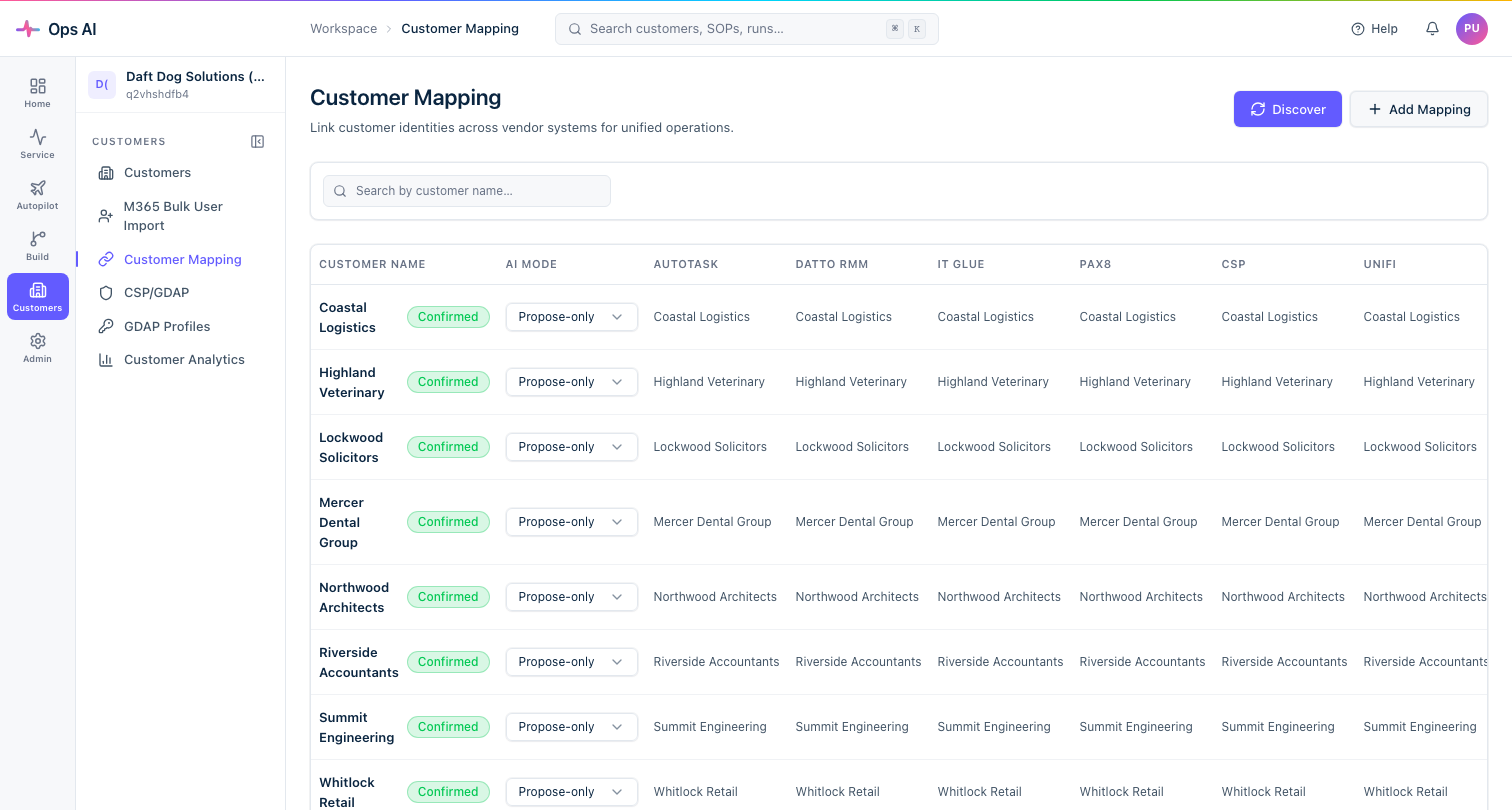
Customer Mapping (/app/customer-mappings) lets you connect a single Ops AI customer record to the corresponding records across all your connected vendor systems — Autotask company, Datto site, IT Glue organisation, M365 tenant, Pax8 account, and more.
Why mapping matters
Ops AI's automation runs against the customer record as the central entity. When a ticket comes in from Autotask for "Acme Corp," Ops AI looks up the Autotask company ID, finds the linked M365 tenant, and can immediately check the user's mailbox, licenses, and Intune device status — all in a single SOP.
Without a complete mapping, cross-vendor operations that span M365 and your PSA/RMM will fail silently (the SOP runs but skips the M365 steps because it can't resolve the tenant).
Mapping a customer to their M365 tenant
- Find the customer row and click Edit mappings.
- In the Microsoft 365 section, select the tenant from the dropdown. The dropdown is populated from your Partner Center customer list (synced when you run a Sync from the Customers page).
- Save.
Once mapped, the customer row shows an M365 link chip with the tenant domain.
Auto-discovery
Ops AI tries to auto-match customers from PSA and RMM against tenants in Partner Center when the company names are close. Review the auto-matches and confirm or correct them before running automations.
Multiple tenants per customer
A single Ops AI customer record can be mapped to one M365 tenant only. If a customer has multiple M365 tenants (rare, but common in education or group structures), create a separate Ops AI customer record for each tenant.
Removing a mapping
Click Edit mappings → clear the M365 field → save. This does not revoke the GDAP relationship; it only removes the local association. Re-mapping later does not require re-onboarding.