Connect your Partner tenant
Before Ops AI can manage any customer's Microsoft 365 tenant, you must connect your own partner tenant once. This creates a long-lived service principal in your Entra directory and the GDAP relationship template Partner Center uses to delegate admin access into customer tenants.
Navigate to Customers → CSP/GDAP (/app/csp-wizard) to begin.
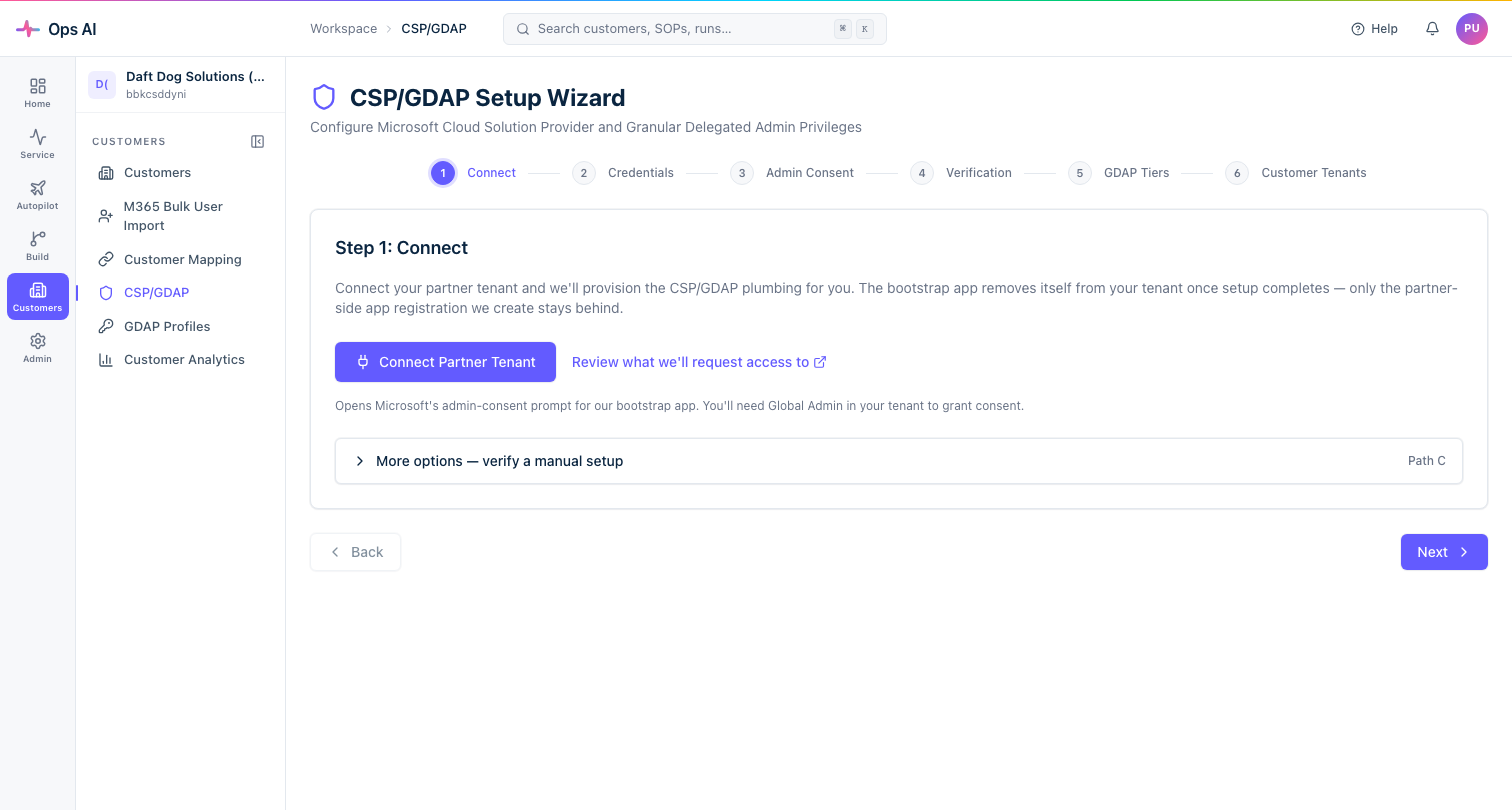
Two setup paths
Path A — Connect Partner Tenant (automated, recommended)
The fastest path. You click Connect Partner Tenant, consent to a short-lived bootstrap multi-tenant Entra app, and Ops AI does the rest automatically in about 30 seconds:
- Creates a partner-tenant security group (
AdminAgentsif it doesn't exist). - Provisions a long-lived per-MSP Entra app registration in your tenant, mints a client secret, and stores it in Azure Key Vault.
- Creates the GDAP relationship template in Partner Center.
- Self-revokes the bootstrap service principal.
What you need: Global Administrator or Privileged Role Administrator on your partner tenant for the consent click. The bootstrap consent is a one-time action; the long-lived app takes over immediately afterwards.
Path C — Verified manual
A 6-step checklist for MSPs who prefer not to grant automated consent. Each step probes live tenant state to confirm you've completed it before advancing:
- Verify Partner Center CSP enrolment.
- Create the
AdminAgentssecurity group (or confirm it exists). - Create a dedicated Entra app registration and copy the client ID, tenant ID, and client secret into Ops AI.
- Grant the required API permissions to the app.
- Create the GDAP relationship in Partner Center manually.
- Final health check.
Path C takes 10–20 minutes and requires Partner Center + Entra admin access throughout.
After setup
Once connected, the wizard moves to a steady-state manage view showing:
- The long-lived partner app's client secret expiry (Ops AI emails you reminders before it expires).
- The active GDAP relationship.
- A Disconnect button that surgically revokes everything Ops AI added if you leave — it removes only the service principal and the GDAP template; it never touches your customer tenants.
Re-connecting after a secret expiry
If your partner-app client secret expires, Ops AI surfaces a yellow banner on the CSP/GDAP page. Click Reconnect to run a lighter refresh flow that rotates the secret and re-establishes the template without repeating the full wizard. You do not lose existing customer relationships.
Troubleshooting
| Symptom | Common cause | Fix |
|---|---|---|
| "Bootstrap consent failed" | Pop-up blocked | Allow pop-ups for app.msp-ops.ai and retry |
| "Could not create AdminAgents group" | Missing app permissions | Ensure the account you consented as has Group.ReadWrite.All |
| "GDAP relationship already exists" | Your Partner Center already has the template | Ops AI adopts the existing template automatically |
| Partner Center shows the bootstrap SP after setup | Race condition in SP removal | Wait 5 minutes; the SP cleanup is asynchronous |