M365 Bulk User Import
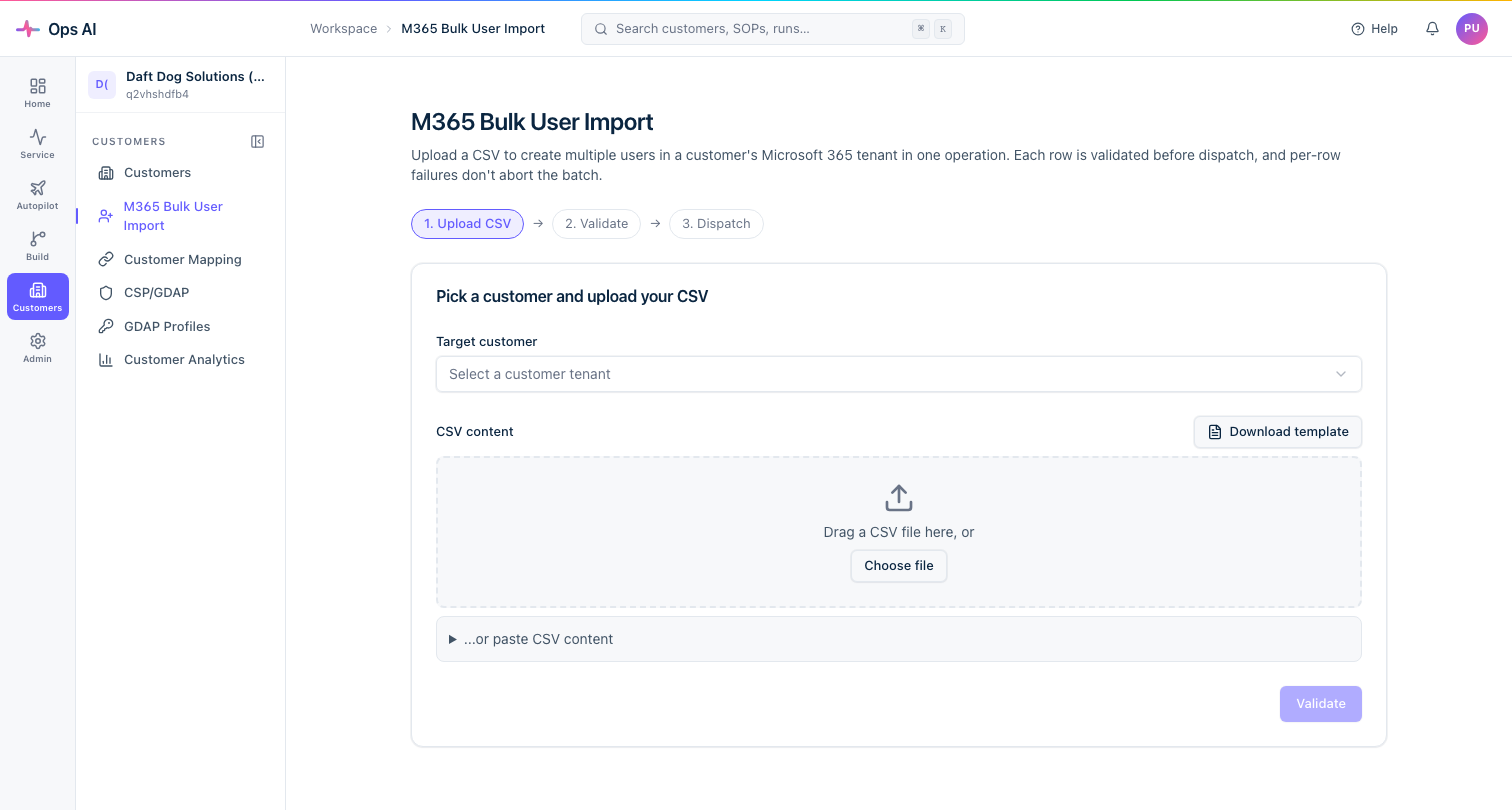
The M365 Bulk User Import page (/app/m365-bulk-import) lets you provision many users into a customer's Microsoft 365 tenant in one operation — useful for new customer onboards, acquisitions, or large-scale licensing changes.
Prerequisites
The target customer must have:
- An Active GDAP relationship with roles that include at least User Administrator (to create users) and License Administrator (to assign licenses). Ops AI shows a warning if the relationship is missing these roles.
- Admin consent granted for the Ops AI Graph app in their tenant (Authorize Graph access). If consent is missing, the import will fail at the provisioning step.
If the customer is not yet linked to a Microsoft 365 tenant, use Customer Mapping first.
CSV file format
Download the template from the page for the exact column headers. Required columns:
| Column | Notes |
|---|---|
displayName | Full name (e.g. Jane Smith) |
userPrincipalName | The UPN to create (e.g. jane.smith@acme.co.uk). Must match the customer's verified domain. |
mailNickname | Short alias without the domain (e.g. jane.smith) |
password | Temporary password. The user is required to change it on first login. |
Optional columns (omit if not needed):
| Column | Notes |
|---|---|
givenName | First name |
surname | Last name |
jobTitle | |
department | |
licenseSkuId | The SKU GUID of the license to assign (e.g. 6fd2c87f-b296-42f0-b197-1e91e994b900 for M365 Business Premium). Omit to create without a license. |
usageLocation | Two-letter country code required to assign licenses (e.g. GB). Defaults to the customer's tenant setting. |
Running the import
- Select the customer from the dropdown. Ops AI checks the GDAP relationship and shows a status indicator (Active / Lapsed / Not configured).
- Upload or drag-and-drop your CSV.
- Ops AI validates column headers and shows a preview with row count. Any missing required columns or malformed UPNs are flagged before submission.
- Click Import. Each row is processed sequentially; results appear as per-row outcome pills:
- Created — user created and (if
licenseSkuIdprovided) license assigned. - Already exists — a user with that UPN already exists; skipped.
- Failed — the specific error (e.g. "UPN domain not verified on tenant", "license quantity exhausted").
- Created — user created and (if
- Download the results CSV for your records.
Tips
- Licenses must be available. If the customer doesn't have enough available license seats, rows requiring a license will fail. Purchase licenses in Pax8 or their M365 admin centre before running the import.
- UPN domain must be a verified domain on the customer's tenant. Using
@onmicrosoft.comalways works as a fallback. - Import is not atomic. Rows are processed one by one. If the import is interrupted, already-created users stay created — re-running with the same file skips them (Already exists) rather than duplicating.
- Bulk import does not send welcome emails. If you need welcome emails, trigger them from the customer's M365 admin centre after the import or build a SOP that calls a separate notification step.