GDAP Profiles
GDAP Profiles are the centrepiece of Ops AI's Microsoft 365 management. Instead of hand-picking roles and security groups every time you onboard a customer, you define a profile once — a name template, a role set, up to five security groups — and then apply it to customers in a single click.
Navigate to Customers → GDAP Profiles (/app/gdap-profiles).
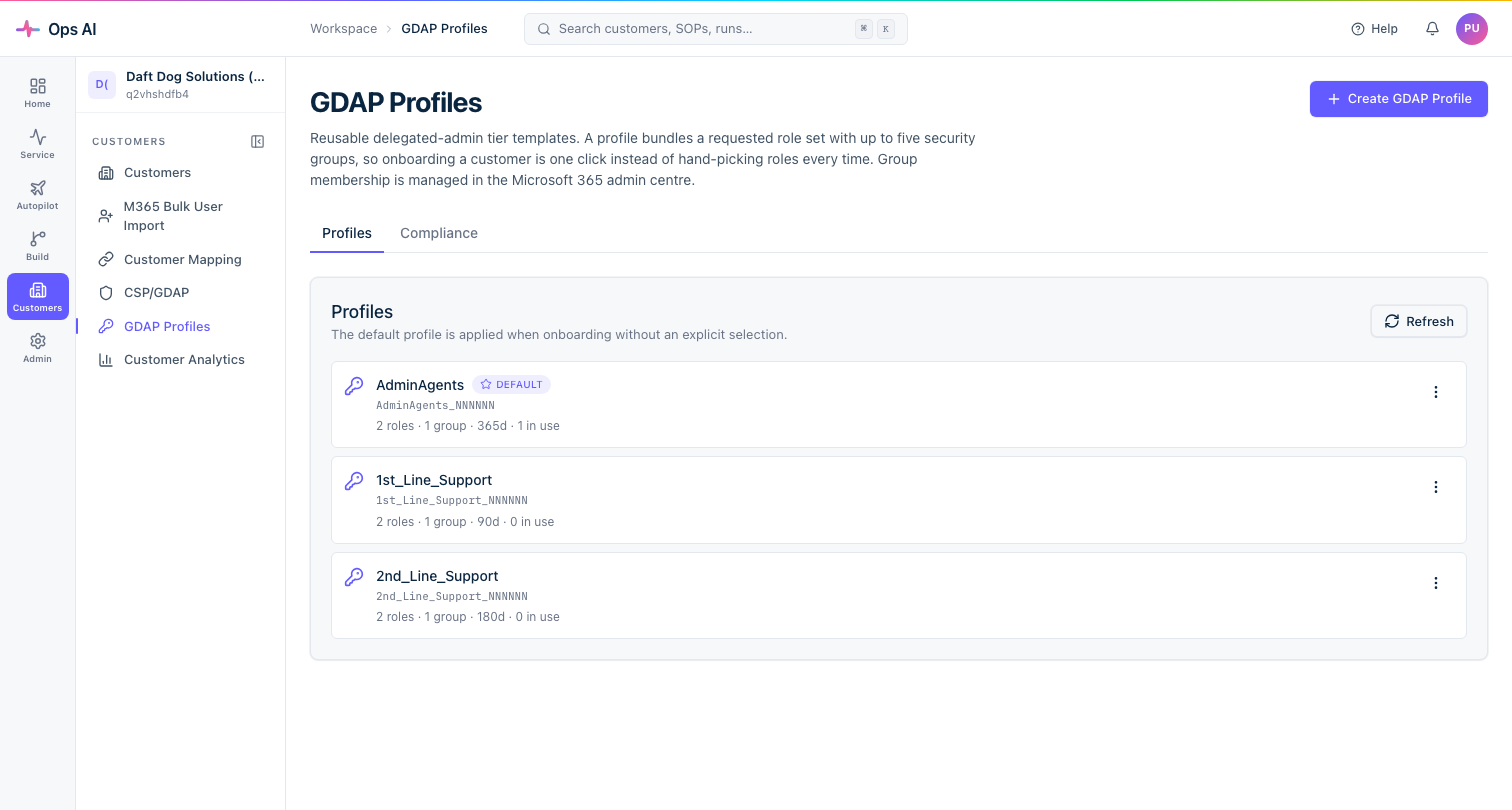
What a profile contains
| Field | Description |
|---|---|
| Name template | The base name for every relationship created from this profile. A random 6-digit key is appended per relationship (e.g. Network_Motion_GDAP_275945). |
| Requested role set | All Entra roles this relationship requests from the customer. This is a superset — the customer consents to these roles when they approve the relationship. |
| Security groups | 1–5 of your partner-tenant Entra security groups. Each group is mapped to a subset of the requested roles (≤ the requested set). Group membership is managed in the Microsoft 365 admin centre — not in Ops AI. |
| Duration | How long the relationship lasts (1–730 days; Microsoft's hard cap). |
| Auto-extend | If ticked, Ops AI automatically extends the relationship 180 days before expiry so it never lapses silently. |
The key suffix shown in the UI (_NNNNNN) is illustrative. The real 6-digit key is generated when a relationship is actually created (e.g. Network_Motion_GDAP_275945). Each relationship gets a unique key, even if two customers use the same profile.
The profile list
Each profile card shows:
- Name and illustrative key suffix.
- Role count · group count · duration · auto-extend (if enabled) · N in use (number of customers holding ≥ 1 relationship from this profile).
- A Default badge on the profile that is applied automatically when onboarding without an explicit selection.
The first profile you create automatically becomes the default. You can change it from the ⋯ menu → Set as default at any time.
Create a profile — 5-step wizard
Click Create GDAP Profile to open the wizard.
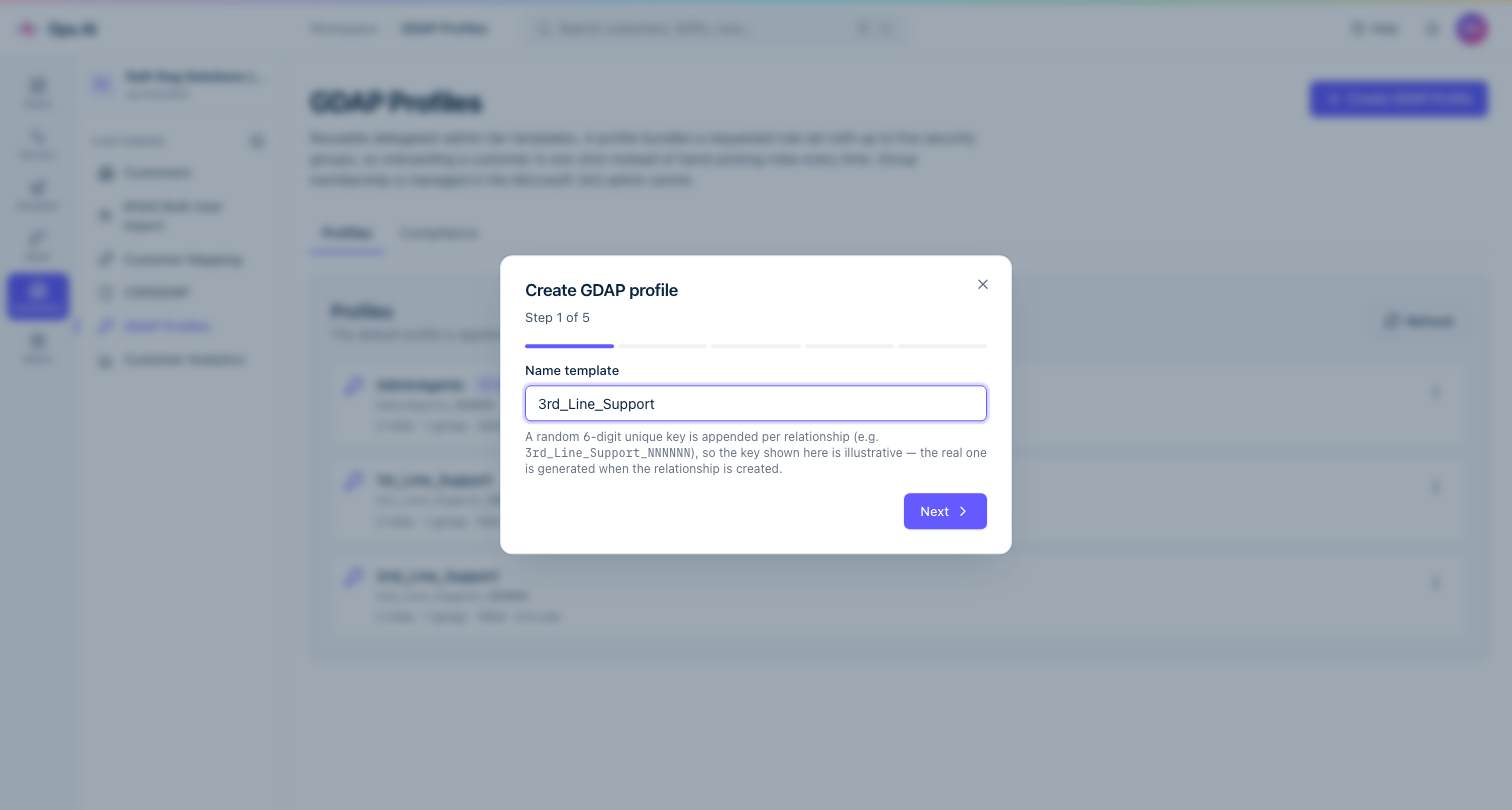
Step 1 — Name template. Enter the base name. Keep it descriptive — your techs see this name in the customer detail drawer. Examples: Network_Motion_Helpdesk, NM_GlobalAdmin_Tier2.
Step 2 — Requested roles. Pick every Entra role this profile may ever need across all its security groups. Request generously here — adding a role later requires every existing customer to re-consent (a more disruptive operation than requesting it upfront).
Step 3 — First security group. Choose an existing partner-tenant Entra group from the picker, or create a new one inline. Tick the role subset this group should hold (must be ≤ the requested set). This group's members will have those roles in every customer tenant that approves this profile.
Step 4 — Additional groups (optional). Repeat up to 4 more times, each with its own group and role subset. You can have at most 5 groups (Microsoft's hard cap per relationship).
Step 5 — Duration, auto-extend, and summary. Set the duration (90 days is a common starting point; 365 for a stable Helpdesk tier). Tick Auto-extend to avoid annual re-approval work. Review the summary, then click Create.
Profile card actions
Open the ⋯ menu on any card for these actions:
| Action | What it does |
|---|---|
| View members | Shows current Entra group members for each group in the profile (read-only; populated in M365 admin centre). |
| Bulk re-apply | Propagates the current profile definition to all customers using it. Safe changes (redistributing already-consented roles between groups) apply automatically. Role-set expansions surface per-customer re-consent links. |
| Set as default | Makes this the profile applied when onboarding without an explicit selection. |
| Edit profile | Full 5-step wizard — you can change the name, requested roles, groups, duration, and auto-extend. A warning appears if the role change requires existing customers to re-consent. |
| Delete | Removes the profile. Blocked if it is the last profile or currently in use by any customer relationship. |
Applying a profile to a customer
Option 1: During onboarding (greenfield)
When you click Onboard on a not-configured customer, you are prompted to select one or more profiles (one relationship is created per profile, giving you per-tier isolation). If you skip the selection, the default profile is applied automatically.
Option 2: Adding a new tier to an existing customer
Open the customer detail drawer (Manage → View details) → GDAP tiers → Add tier.
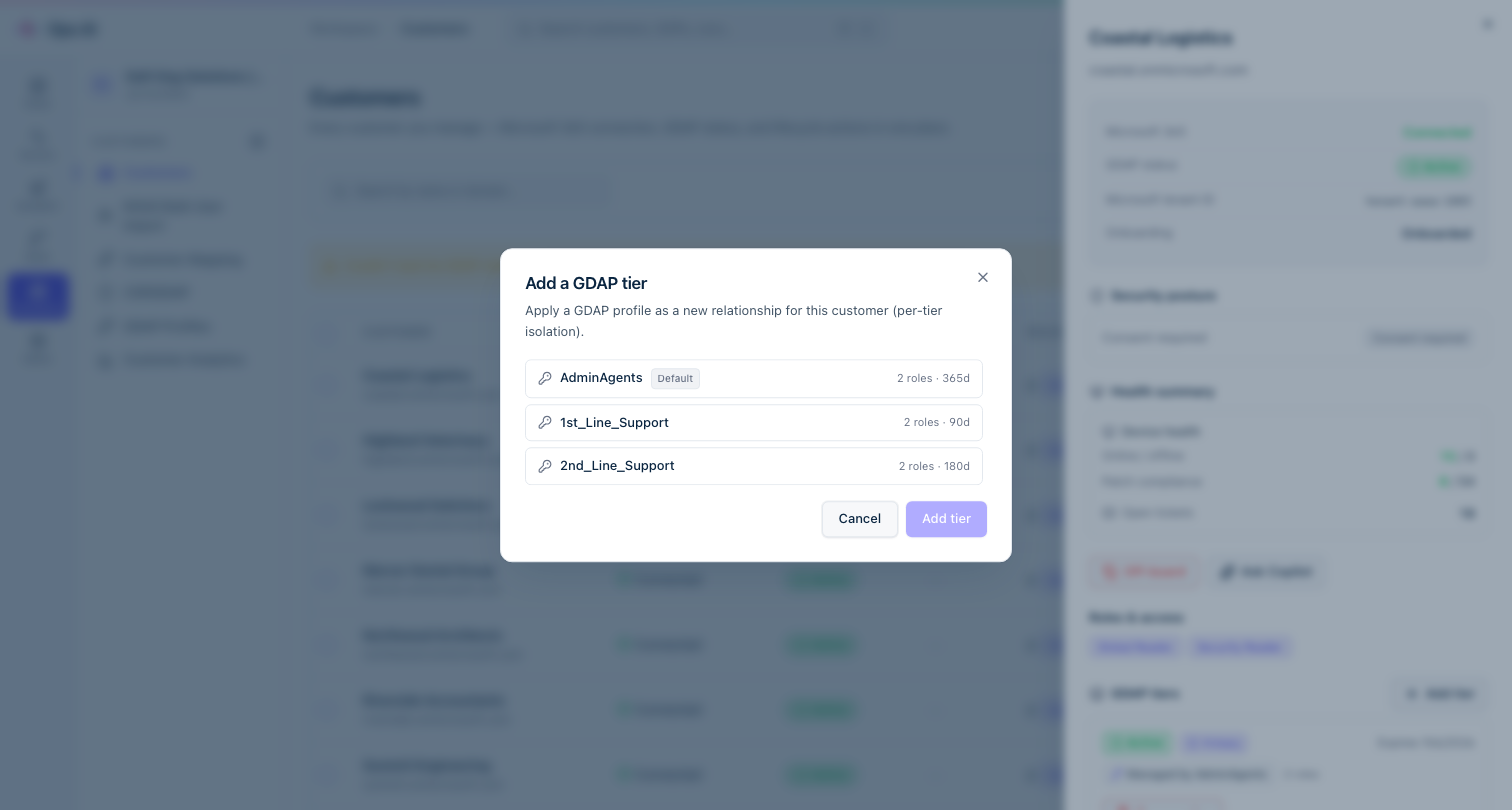
Select the profile and click Add tier. Ops AI creates a new GDAP relationship in Partner Center, issues the access-assignments, and a pending invite is sent to the customer for approval. The new tier appears in the GDAP Tiers list with status Pending until the customer approves it at their Microsoft 365 admin centre.
Option 3: Brownfield adoption — import existing relationships
If the customer already has GDAP relationships from Partner Center or Lighthouse, use Customers → Manage → View details → GDAP Tiers to see them as Unmanaged rows. Click Reverse-map to profile on any unmanaged tier to attach a profile for go-forward management (no mutations to Graph — purely a local link).
Or run a batch import: in the Customers toolbar, click Import existing GDAP to open the brownfield import wizard, which discovers every in-force relationship across all your customers and imports them in one pass (read-only).
Propagating profile changes
When you Edit profile, Ops AI immediately runs propagation across every customer using it:
- Auto-apply — if the change only redistributes roles that every affected relationship has already consented to (e.g. moving a role between groups, or removing a group), access-assignments are updated without any customer action required.
- Re-consent required — if you added a new role to the requested set, customers holding relationships from that profile need to re-approve. Ops AI shows a per-customer re-consent link; send it to the customer admin. Until they approve, their relationship continues under the old role set.
The same logic runs when you click Bulk re-apply from the profile card — useful for re-propagating after a batch of customers have re-consented.
Best-practice GDAP recommendations
Request a generous role superset upfront. Roles are locked when the customer consents. Adding a role later forces every existing customer using that profile to re-approve. It's much cheaper to request 10 roles upfront (even if two groups only use 4 of them) than to do a fleet-wide re-consent a month later.
Map least-privilege role subsets per group. Your Helpdesk group should not have Global Administrator. Define each group's role subset narrowly — exactly what that team needs to do their job, no more.
Use separate profiles for different privilege tiers. A common pattern: one Helpdesk profile (90d, auto-extend, User Administrator + Exchange Administrator) and a separate Infra profile (30d, no auto-extend, Global Administrator + Privileged Role Administrator). Apply both to customers who need full coverage; apply only Helpdesk to smaller tenants.
Avoid Global Administrator where a narrower role works. Security Reader, Global Reader, Exchange Administrator, and Intune Administrator cover most read-heavy MSP workflows. Reserve Global Admin for break-glass scenarios or a dedicated short-lived tier.
Enable auto-extend on long-lived helpdesk tiers. Forgetting to extend a relationship before it lapses is a painful gap in service. Auto-extend handles it automatically.
Keep group membership current in M365 admin centre. Ops AI reads group members but never adds or removes them. Offboard a leaver from the security group in M365 admin centre, not in Ops AI.
Use duration + tier to control blast radius. A 7-day Global Admin relationship limits the window of exposure even if credentials are compromised, because the relationship simply expires.
FAQ
Can a customer have more than one GDAP relationship?
Yes. Microsoft allows multiple delegated admin relationships per partner↔customer pair. Each relationship has its own role set, expiry, and security groups. Ops AI surfaces all of them in the GDAP Tiers panel on the customer detail.
What is the maximum number of security groups per profile?
Five — a Microsoft hard cap per relationship. Ops AI validates this at create time.
Can I use the same security group in multiple profiles?
Yes. A group can appear in as many profiles as you like. The group's membership in M365 admin centre is shared across all profiles; only the role subset it is granted differs per profile.
What happens to existing relationships if I delete a profile?
Nothing — active relationships keep working. Ops AI marks them as "Unmanaged" (no longer driven by a profile template). You can reverse-map them to a different profile later, or leave them as unmanaged.
Can I edit the name template of an existing profile?
Yes, from Edit profile. The new name applies to future relationships only; existing relationships keep their original {old_name}_{key} display name.