Customer lifecycle
The Customers page (/app/customer-tenants) is your central view for every Microsoft 365 tenant in your Partner Center. It shows GDAP status, role assignments, expiry dates, and gives you one-click access to the full relationship lifecycle.
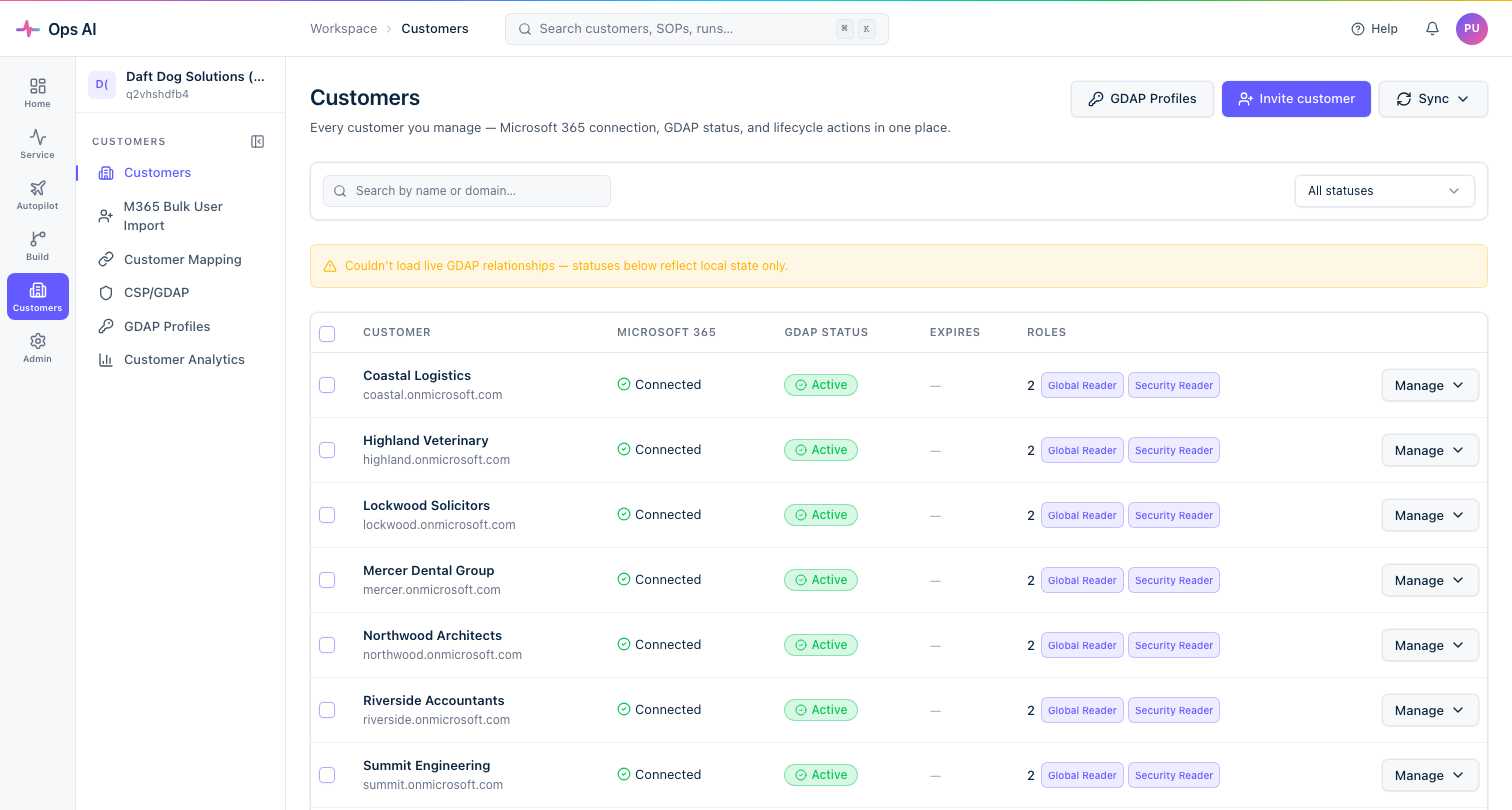
Tenant statuses
| Status | Meaning |
|---|---|
| Active | GDAP relationship is in force. Ops AI can run Graph operations against this tenant. |
| Expiring soon | Within 30 days of expiry. An email reminder has been sent (or will be). |
| Lapsed | The relationship has expired. Read/write operations are blocked until extended or re-onboarded. |
| Pending | An invite has been sent; the customer admin has not yet approved it. |
| Not configured | Tenant is discovered in Partner Center but no GDAP relationship has been created. |
Onboarding a new (greenfield) customer
A greenfield customer has no existing GDAP relationship in Partner Center.
- Find the customer in the list (status Not configured) and click Onboard, or use Invite customer in the toolbar to start fresh.
- In the onboarding dialog, choose one or more GDAP Profiles to apply. Each selected profile creates one GDAP relationship — a separate tier. If you skip selection, the default profile is applied.
- Ops AI creates the relationships in Partner Center, issues the access-assignments per profile, and generates per-relationship approval links.
- Send the approval link(s) to the customer admin. They visit the link and approve at their Microsoft 365 admin centre. Status moves from Pending to Active.
- Once Active, click Authorize Graph access (from the Manage menu) to grant admin consent for Ops AI's read-only Microsoft Graph scopes in the customer tenant. This unlocks Copilot Graph reads (Conditional Access, Intune, Teams, etc.) for that customer.
Onboarding / adopting an existing (brownfield) customer
Most MSPs have GDAP relationships already configured in Partner Center or Lighthouse. Ops AI imports them without touching Graph — zero mutations.
- Click Onboard on a tenant that shows as Not configured (but you know has an existing relationship). Ops AI auto-detects the active relationship and imports it as Unmanaged rather than creating a new one.
- Or use Customers → Import existing GDAP (toolbar) for a bulk import across all tenants at once, with per-tenant outcome pills.
- Imported relationships show in the GDAP Tiers panel as "Unmanaged." From there, click Reverse-map to profile to attach a GDAP Profile for go-forward management — Ops AI validates that the imported relationship's consented roles cover the profile's requirements before linking.
The customer detail drawer
Click Manage → View details on any customer to open the detail drawer.
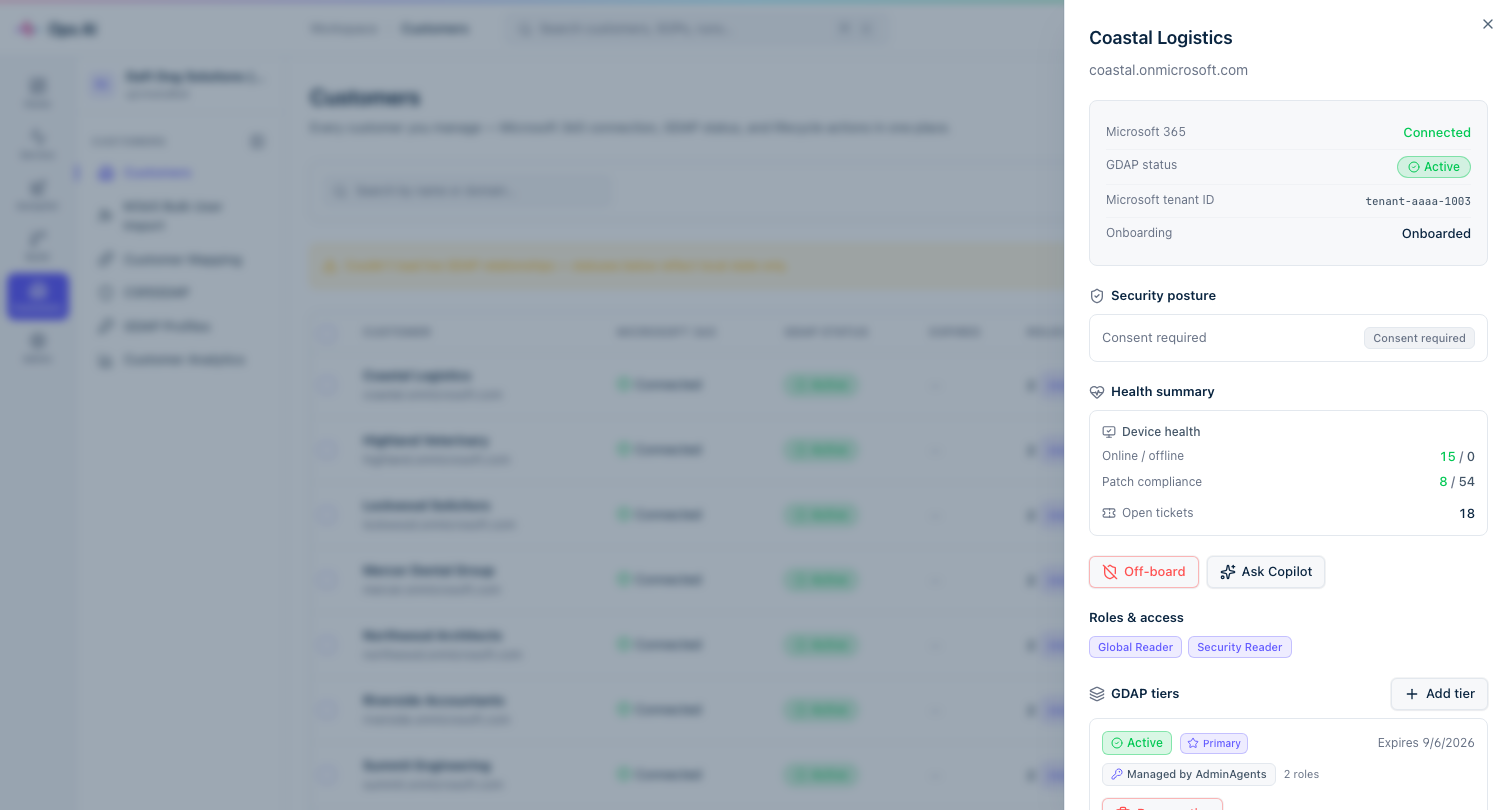
The drawer shows:
- Microsoft tenant ID — the customer's Entra tenant GUID. Useful for support tickets.
- GDAP status and expiry.
- Security posture — Secure Score %, open Defender alerts, and risky users. See Security posture and Secure Score.
- Action buttons — Modify access, Extend, Role audit, Revoke, Off-board, Ask Copilot.
- Current relationship — the primary (most-privileged) active relationship.
- Roles & access — all roles currently consented under the primary relationship.
- GDAP Tiers — all relationships this customer holds, managed and unmanaged. Add a new tier, reverse-map an unmanaged one, or remove a tier.
- Relationship history — every past and present relationship with status, roles, and dates.
GDAP Tiers panel
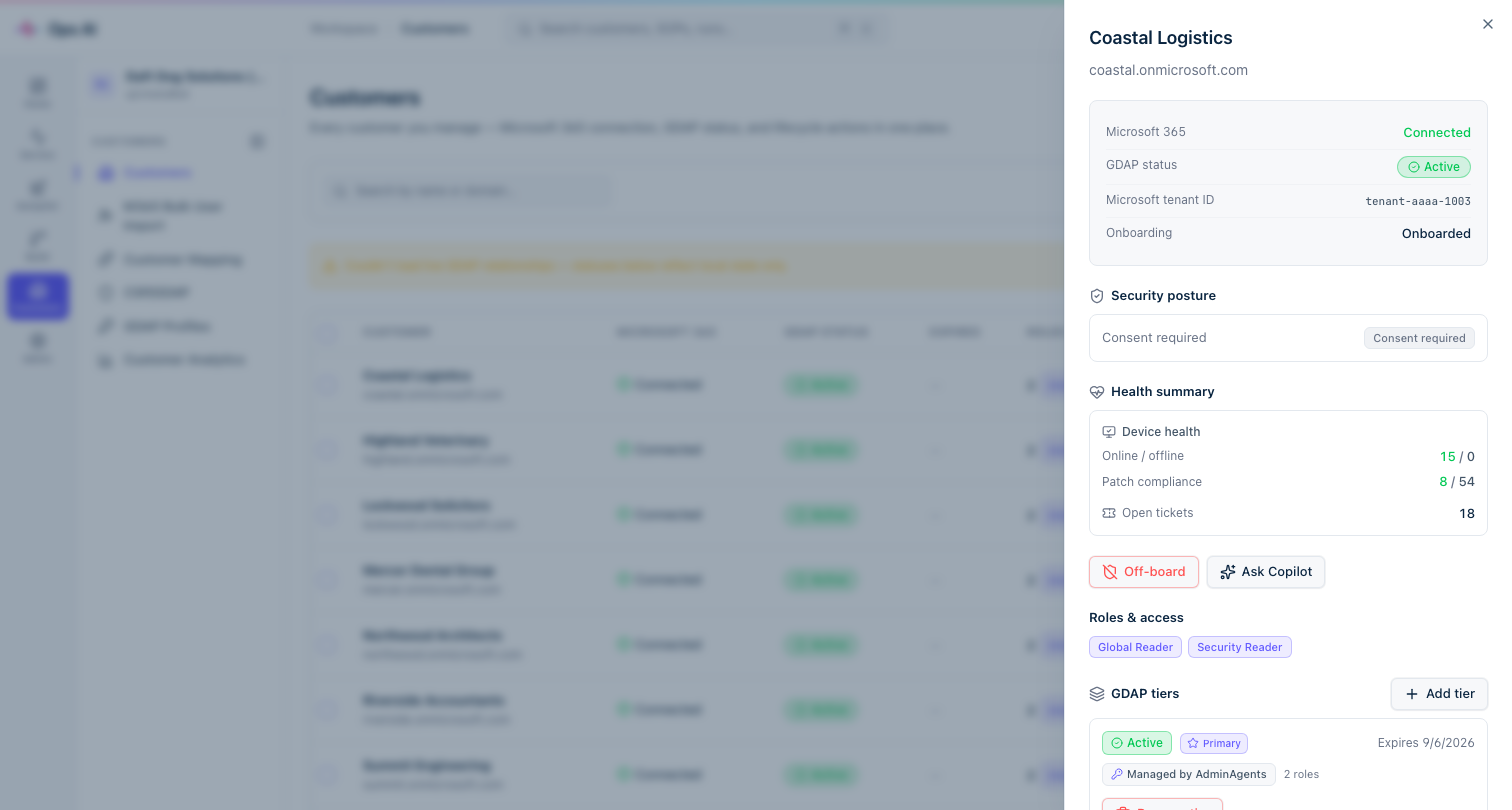
Each row in the GDAP Tiers panel shows:
- Status pill (Active / Pending / Lapsed / Off-boarded).
- Primary badge on the most-privileged active relationship (the one Ops AI uses as the headline).
- Profile name (or "Unmanaged" for imported/orphan relationships).
- Role count.
- Per-row actions: Reverse-map to profile, Remove tier, Copy approval link, Resend invite.
Adding a tier
Click Add tier to apply a new GDAP Profile as an additional relationship. This is how you give a customer a short-lived Global Admin tier on top of a long-lived Helpdesk tier without modifying the existing relationship.
Removing a tier
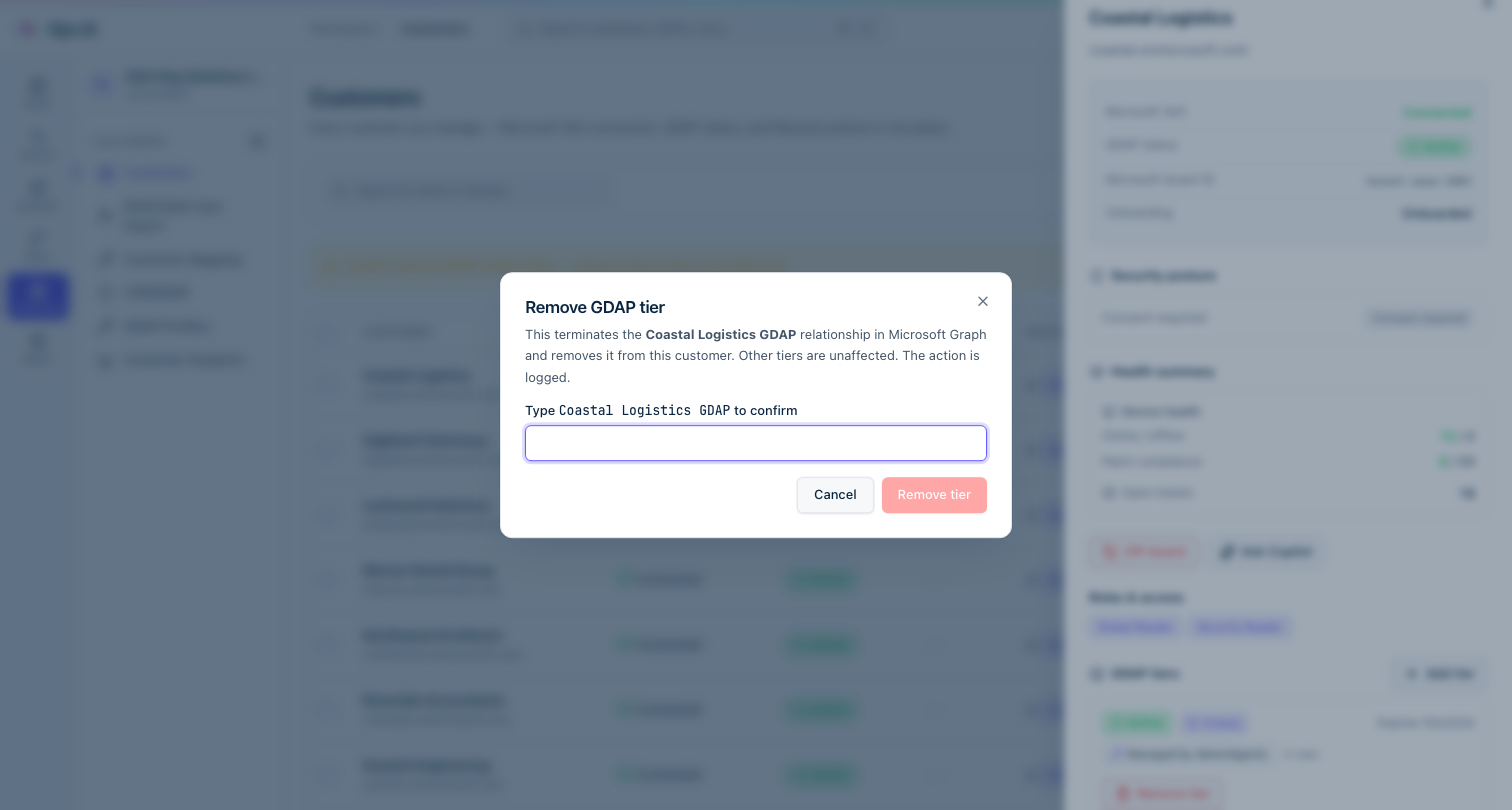
Click Remove tier on any row. A type-to-confirm dialog shows the exact relationship name (e.g. Tycho_AE_Single_655554). Type it and confirm. Ops AI terminates the relationship in Microsoft Graph and removes it locally.
Removing a Pending (never-approved) relationship is not currently supported — Microsoft Graph does not allow terminating a relationship that has not yet been activated by the customer. Pending relationships that are never approved expire naturally and grant no access.
Day-2 operations
Extend a relationship
Click Manage → Extend (or Extend in the detail drawer). This creates a new GDAP relationship with the same roles and sends a fresh approval link to the customer. The customer must approve at their M365 admin centre.
For profiles with Auto-extend enabled, Ops AI handles this automatically 180 days before expiry.
Modify access (role change)
Click Manage → Modify access to change the roles on an existing relationship. If you are adding roles (expanding the requested set), the customer must re-consent. If you are removing or redistributing roles within the consented set, the change is applied silently.
For profile-managed relationships, edit the GDAP Profile instead — the change propagates automatically.
Role audit
Click Role audit to open a read-only log of every csp.gdap.* audit event for this customer — profile applications, access-assignment changes, re-links, and removals. Useful for compliance evidence.
Authorize Graph access (re-consent)
Click Manage → Authorize Graph access (or the equivalent in the detail drawer) to open or re-send the per-customer admin-consent URL. The customer admin clicks it and approves Ops AI's read-only Graph scopes (e.g. Policy.Read.All for Conditional Access, DeviceManagementApps.Read.All for Intune). This is a separate, one-time step from the GDAP relationship approval.
You need to re-run this after adding a new Graph scope (e.g. if Ops AI gains a new read capability). Ops AI surfaces a banner on the customer detail when re-consent is needed.
Revoke
Click Revoke to remove Ops AI's Graph-consent access-assignments from the customer's tenant while keeping the GDAP relationship itself intact. Use this if you want to temporarily suspend read operations without off-boarding the customer.
Off-board
Click Off-board to fully terminate the relationship and remove all access-assignments in Microsoft Graph. This ends the MSP's delegated admin access to the tenant. The action is logged and cannot be undone from Ops AI — you would need to re-onboard to re-establish access.
Bulk actions
Select multiple customers (checkboxes on the left) to access bulk operations:
- Bulk onboard — apply a profile to multiple not-configured tenants at once, with per-tenant outcome pills.
- Sync — refresh the customer list from Partner Center to pick up newly discovered tenants.
Relationship history
The Relationship history section in the customer detail drawer shows every GDAP relationship Ops AI has ever tracked for this customer — active, lapsed, off-boarded, and pending. Each row shows the relationship display name, status, role count, and expiry. Pending rows include Copy approval link and Resend invite buttons.
Troubleshooting
| Symptom | Likely cause | Fix |
|---|---|---|
| Customer stuck at Pending | Customer admin hasn't clicked the approval link | Resend invite from the Relationship history row |
| Authorize Graph access fails | Customer's Conditional Access blocks service principals | Ask the customer to add a CA exclusion for the Ops AI app |
| Role audit shows unexpected role changes | Another admin used Partner Center directly | Roles shown reflect what Microsoft holds; run a Reconcile to sync |
| "Couldn't terminate relationship" on off-board | Microsoft Graph returned an error | Wait 5 min and retry; if persistent, terminate from Partner Center directly |
| Lapsed relationships across many customers | Auto-extend disabled on profiles | Edit affected profiles and enable Auto-extend, then use Bulk re-apply |